
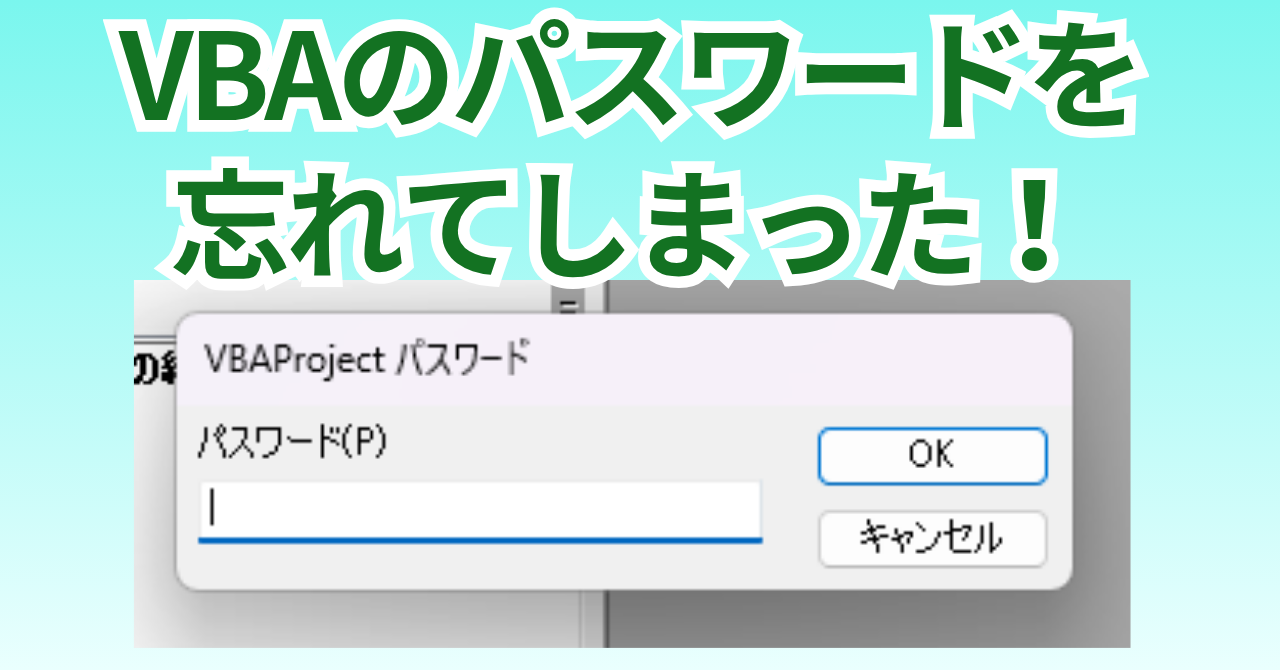
When you try to open a VBA created by someone else, you might encounter a situation where the VBA is password-protected and cannot be viewed.
Or, even if it's VBA that you created yourself, there are cases where you forget the password and can no longer open it.
In such cases, you can use this method to unlock it.
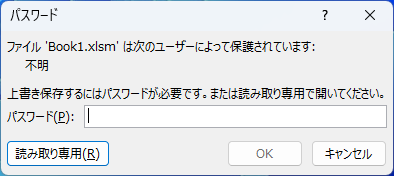
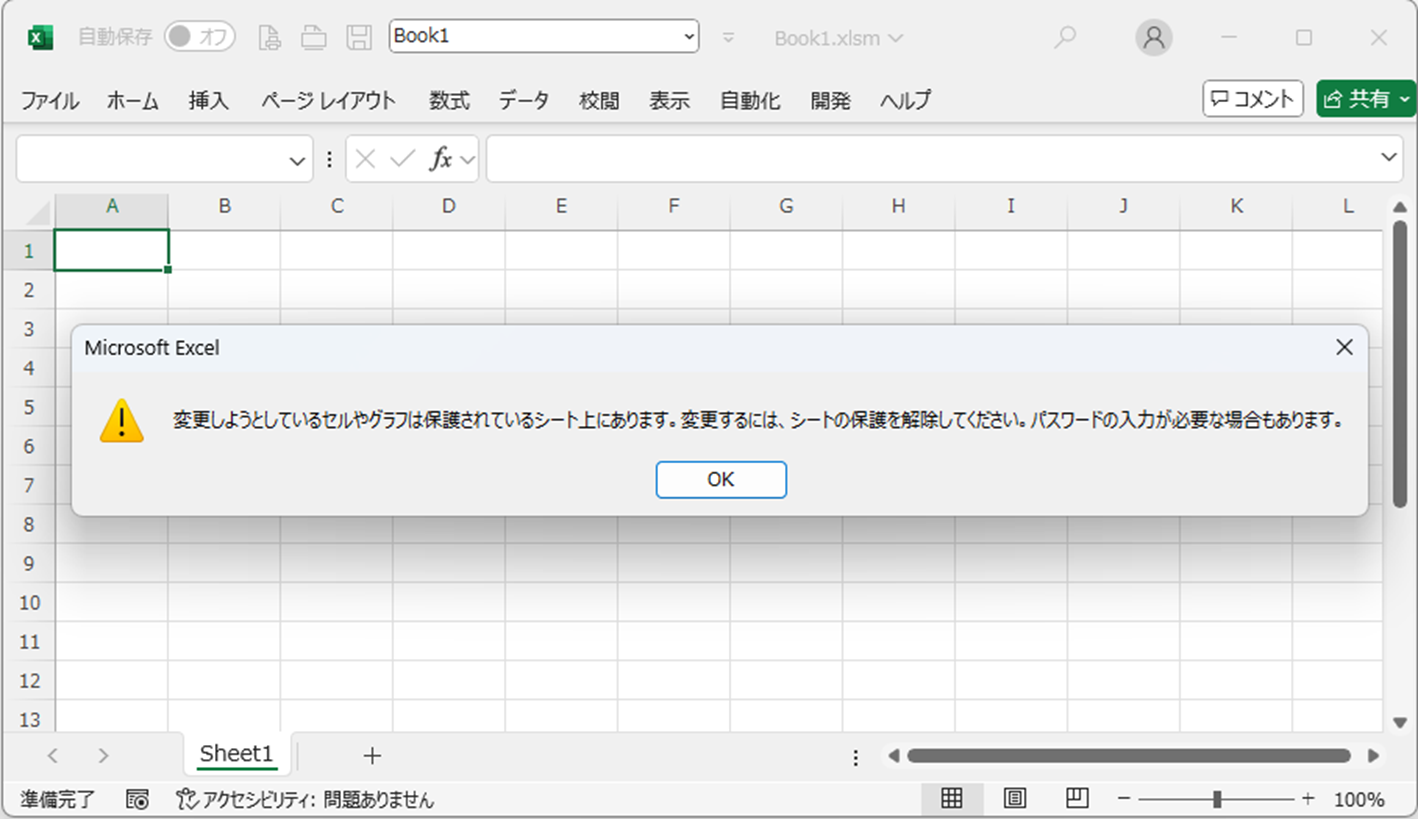
Please also refer to the following for other Excel password removal methods.
Prepare a binary editor
To perform this operation, you need to open a ".bin" file using a binary editor. In most cases, you won't have this software on your computer, so let's download it first.
If you search for "binary editor" or similar terms, you will find them.
Window Forest
Change the extension to ".zip"
First, please copy the relevant Excel file and create a backup. If you fail in the subsequent operations, there's a possibility it will become impossible to open.
1. As shown in the diagram below, change the Excel file extension from ".xlsm" to ".zip".
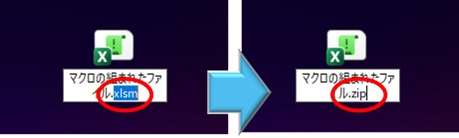
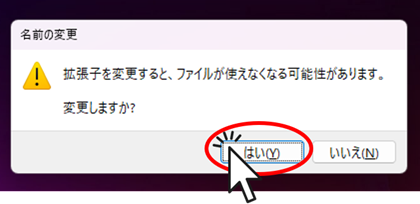
2. A warning screen like the one below will appear, so click "Yes."
3. The Excel file will then change to a ".zip" file.

Extract "vbaProject.bin" from the zip file
Double-click the ".zip" file created above to open it and then open the folder named "xl".
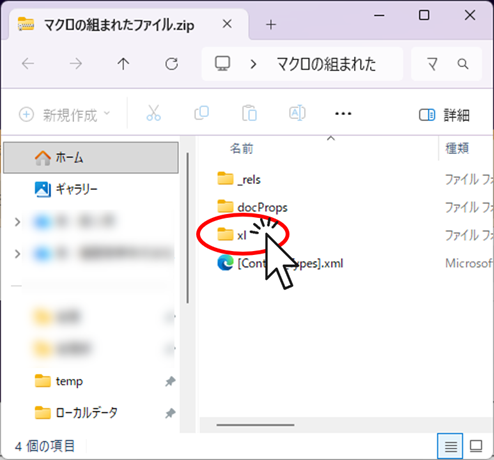
2. Copy the "vbaProject.bin" file to another location.
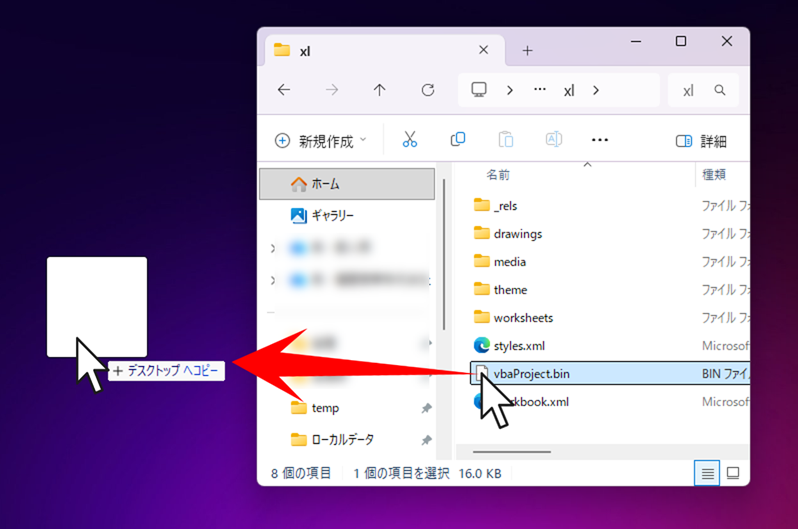
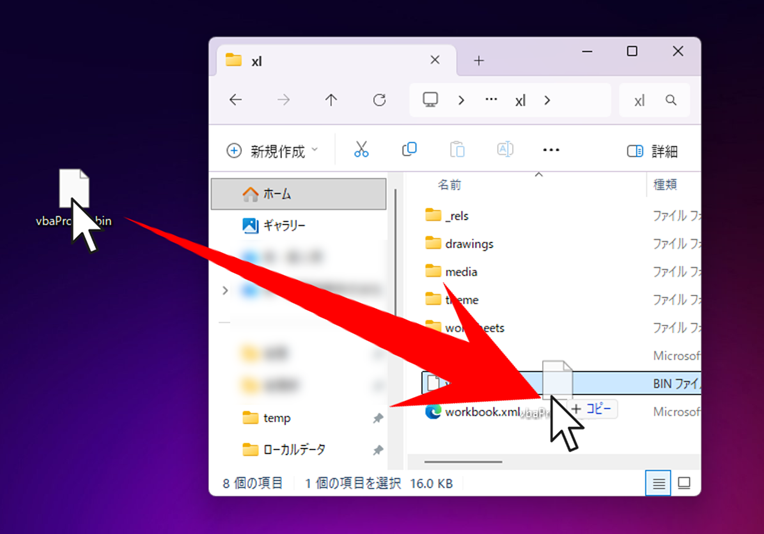
You can copy by holding down the "Ctrl" key and dragging.
Process the "vbaProject.bin" file
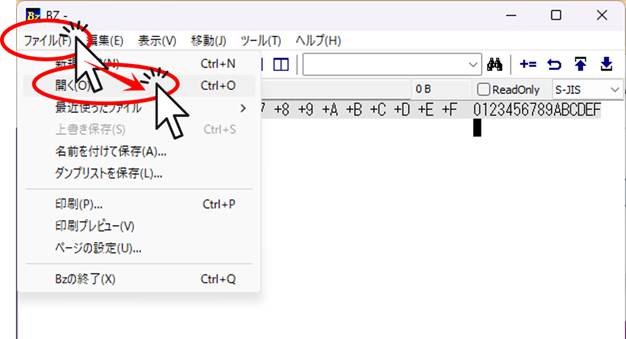
Open "vbaProject.bin" with the binary editor you downloaded
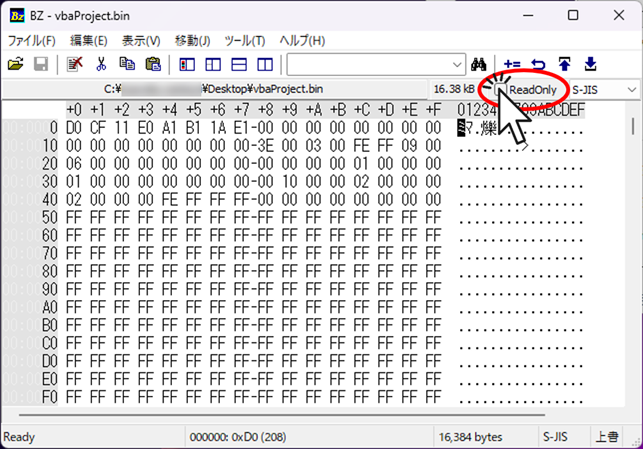
If ReadOnly is checked, click to uncheck it.
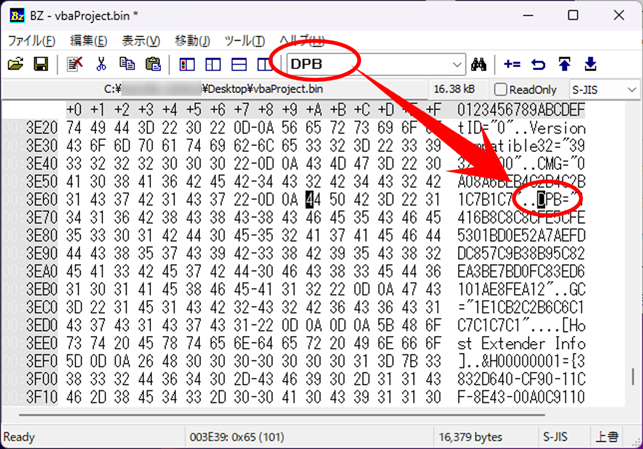
Search for "DPB"
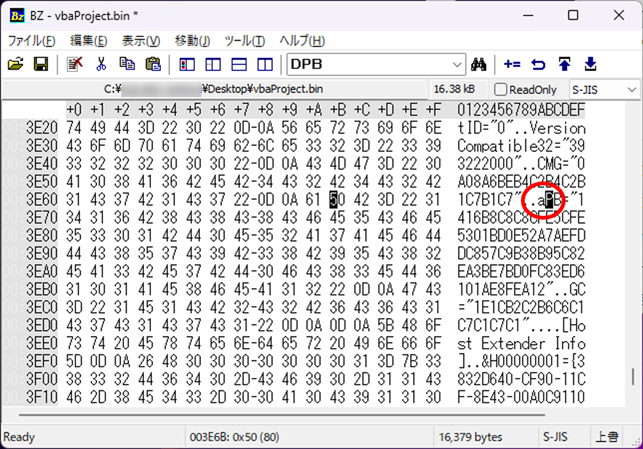
Replace one of the letters in "DPB" with another letter.
If you select one character and press any letter key, it's OK.
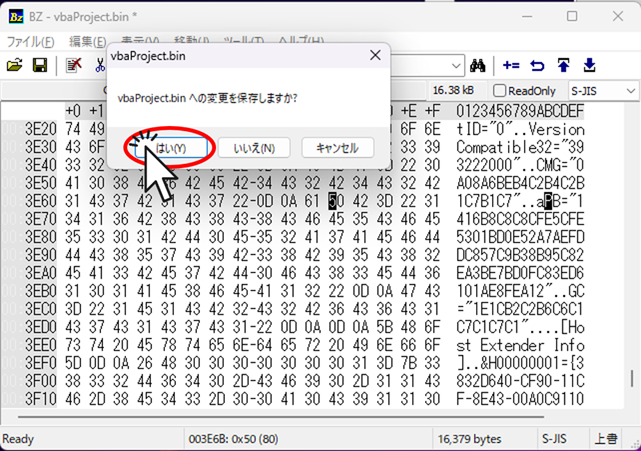
Save and close "vbaProject.bin."
Return the "vbaProject.bin" file to the original ".zip" file folder
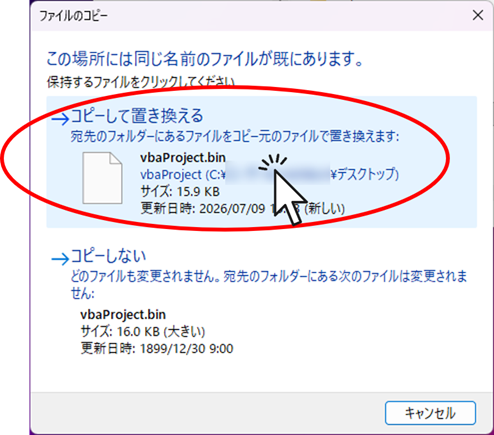
Click on "Copy and Replace."
Open Excel
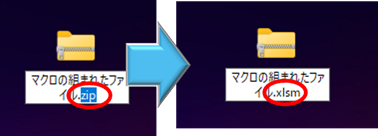
Change the extension of the processed ".zip" file back to ".xlsm"
Open the Excel file that was being processed.
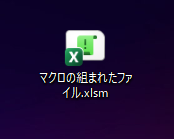
An error message like the following appears when I open Excel. It's okay if the name I just changed appears as an "invalid key."
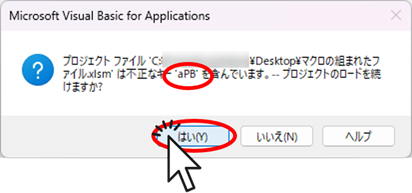
If a different string of characters appears here, it's highly likely you've made a mistake. Please restart from the beginning without overwriting the Excel file.
When I open Excel, the VBA password is removed, and the modules are openable.
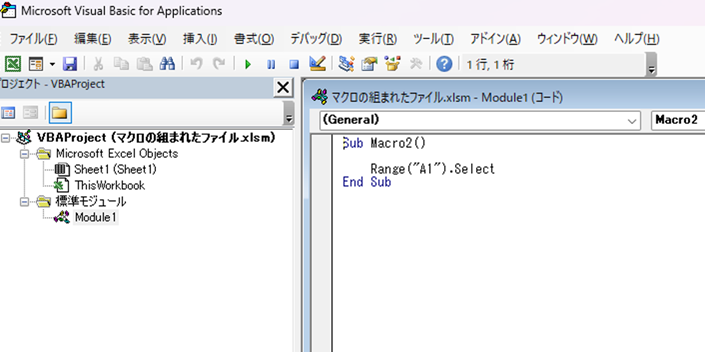
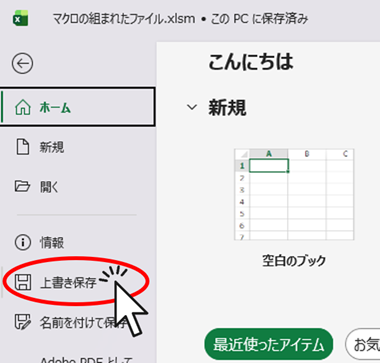
Once you have confirmed that VBA can be opened without any issues, save the file as "Save As" and close Excel.


 English
  日本語
日本語
Comment