Sponsored Links
Excel Functions

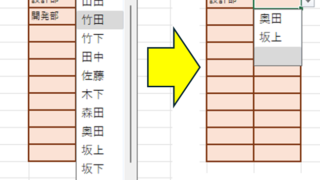
Linking two pull-downs (drop-downs) without macros (when reflected in multiple rows) Excel (Excel)

A must-see for those who want to create Excel linked multi-row dropdowns! This article explains in detail how to link multi-row dropdowns without macros. In fact, it can be easily achieved with the INDIRECT function and named ranges. Reading this article will enable you to create efficient spreadsheets.
Excel Functions

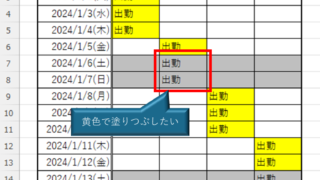
How to Prefer Manual Fill to Conditional Formatting Excel (Excel)

Conditional formatting is a very useful feature that automatically fills in or changes formatting based on specified conditions. However, many of you may have experienced the problem that conditional formatting takes precedence over manual filling. In this article, we will discuss how to use conditional formatting...
Excel Functions

SUMIF and SUMIFS Functions Excel

The SUMIF function can be used to change the contents of the total according to conditions, and the SUMIFS function can be used to specify multiple conditions. The reason why and how to use the SUMIF...
Excel Functions

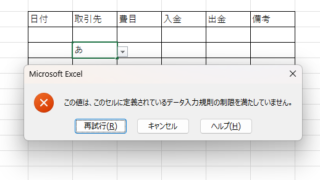
Excel to allow entry of items not in the pull-down (drop-down) list

When using the pull-down entry function in Excel with the default settings, if you try to enter an item that is not in the list prepared for entry, an error message like the one shown below will appear and you will not be able to enter the item. In such a case, you can either allow any item to be entered, or display a message...
Excel Functions

What does the error message "#NAME?

Error messages are unavoidable when dealing with Excel, and you may be surprised when they suddenly appear. Here are the meanings and countermeasures for this error message. Meaning of "#NAME?
Sponsored Links
en_USEnglish
Copied title and URL