Sponsored Links
Excel Macro (VBA)

Excel Macro (VBA): How to use the CountIfs function in VBA! 

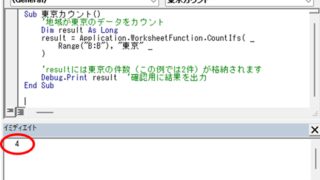
If you are a beginner who wants to use Excel's COUNTIFS function in VBA, this is a must. This article provides a thorough explanation from basic writing to error handling. In fact, with a few tricks, you can reduce processing time from a few minutes to a few seconds. Read this article and you will be able to efficiently tabulate data from tomorrow.
Excel Macro (VBA)

[For Beginners] Step-by-Step Guide to Installing SeleniumBasic

This article offers a beginner-friendly, detailed guide to installing SeleniumBasic. Stuck on the installation and thinking about giving up on automation? The truth is, anyone can install it by taking it one step at a time. A professional with 20 years of experience teaching Excel will walk you through the process.
Excel Macro (VBA)

How to use the input screen "InputBox" Excel Macro (VBA)

If you want to use values or arbitrary characters that do not exist in Excel, the "InputBox" is useful to easily create an input screen during macro execution. In this article, we will briefly explain how to use this "InputBox".
Excel Functions

Absolute and relative references in Excel (Excel)

Absolute and relative references are explained below. Relative reference: If you want to display the same contents in cell "C3" as in the neighboring cell "B3", enter the following in cell "C3": =B3. If you want to display the same content in cell "C3" as in the neighboring cell "B3", enter the following in cell "C3": =B3
Excel Functions

How to extract characters before a specific character "LEFT and FIND functions in Excel"

As shown in the figure below, if there is extra data after the string and you want to extract only the string to the left of the extra data, you cannot simply use the LEFT function alone because the number of characters is not constant. Function to extract the left side of the "¥" mark in cell "A2" = LEFT(A2,FIND(...))
Sponsored Links
en_USEnglish
Copied title and URL