
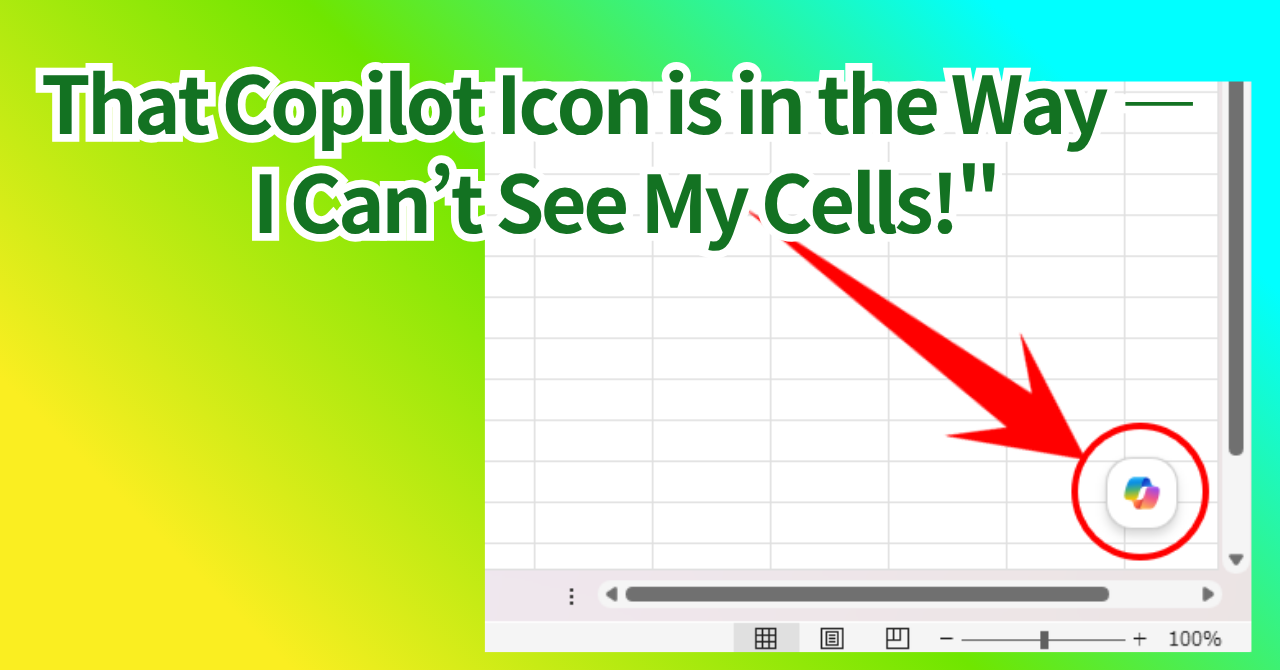
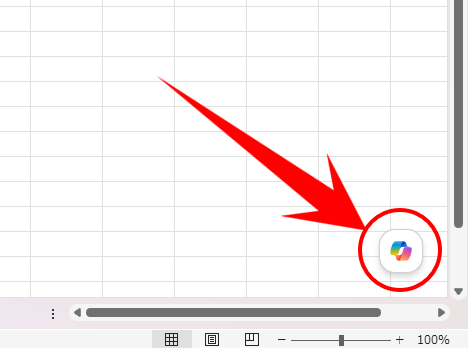
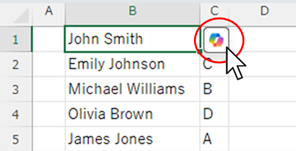
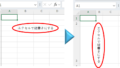
Many of you may have recently started seeing a "Copilot" mark like the one shown above in Excel.
Copilot has many convenient features, but when it constantly pops up when you select a cell, it can be quite bothersome at times.
So this time, we will introduce four methods to hide this annoying Copilot mark in Excel.
1. Turn off Copilot's features
Disable Copilot
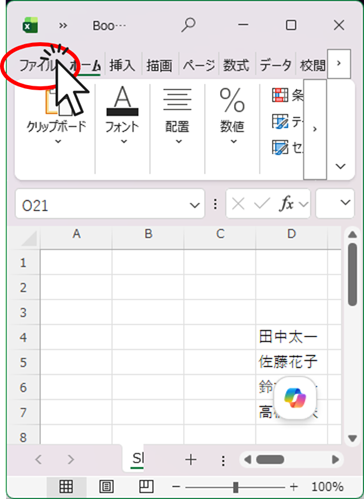
Click on the File tab
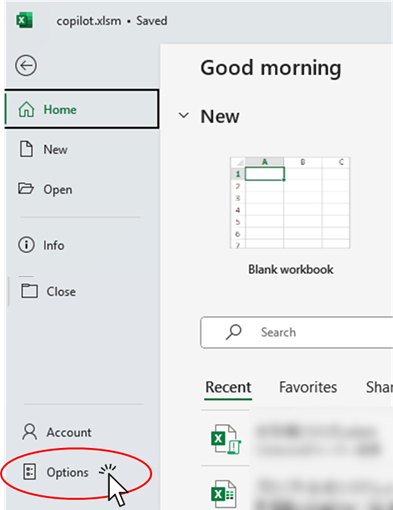
Click options
Uncheck "Enable Copilot"
Uncheck "Enable Copilot" within Copilot and click the "OK" button.
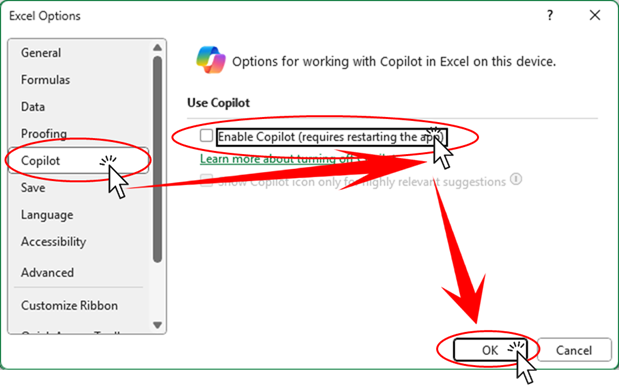
Now I have successfully stopped the obstructive "Copilot" feature.
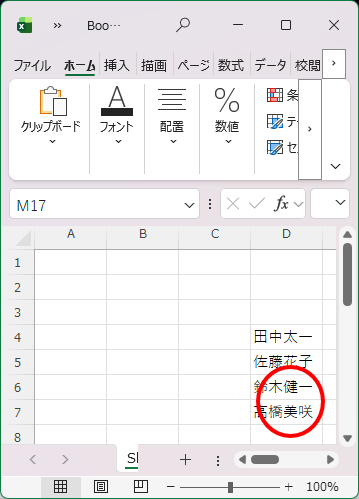
Enable Copilot
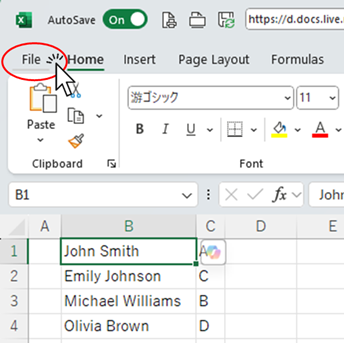
Click options
Check "Enable Copilot"
Check the box next to "Enable Copilot" within Copilot and click the "OK" button.
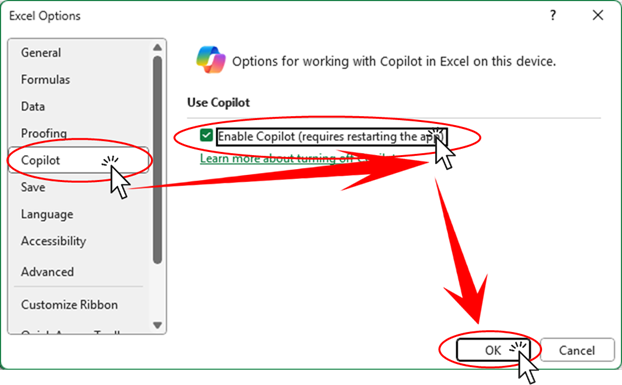
Restart Excel
If there are other Excel files open, please close all Excel files, including those other files.
When you open Excel again, the "Copilot" feature will return.
Pros and Cons of Disabling Copilot Features
Advantages
- Once set, it will remain effective indefinitely.
- The Copilot mark will no longer appear at all.
demerit
- The settings are a bit troublesome and hard to remember.
- It's a hassle to re-enable Copilot's features the next time you want to use them.
- When enabling Copilot features, you need to close all Excel instances first.
Hide the Copilot icon until it is opened next time.
Hide Copilot mark until next open
There are times when you want to use it, but for now, this method is best when "it's more efficient not to see it."
1. Click the Copilot icon.
Click the "Copilot" mark that is displayed.
2. Click "Hide until next opening"
Then, the menu shown in the figure below will appear, so click "Hide until I reopen this document" at the bottom.
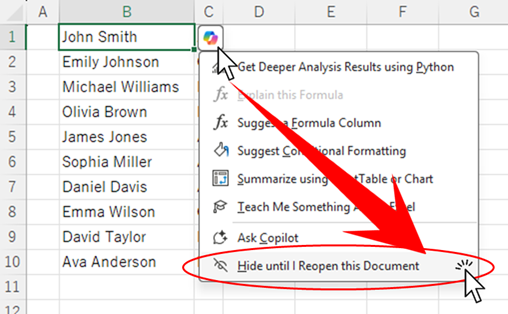
This way, I was able to hide the annoying "Copilot" mark.
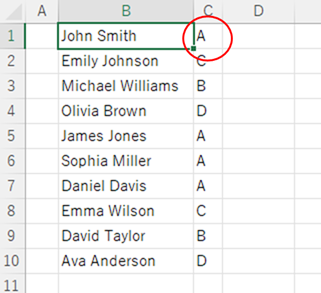
3. How to display again
If you close and reopen Excel after hiding the "Copilot" mark, you can display the "Copilot" mark again.
Pros and Cons of "Hide Temporarily"
Advantages
- It can be easily hidden.
- It can be easily displayed again.
- It does not affect other files.
demerit
- Every time I reopen Excel, it appears again.
- If you want to hide them in other files as well, you'll need to perform the operation in every Excel file.
3. Show Copilot features only when there are suggestions.
Change Copilot's functionality to "only for highly relevant suggestions."
Click on the File tab
Click options
Uncheck "Enable Copilot"
Check "Show Copilot icon only for relevant suggestions" within Copilot and click the "OK" button.
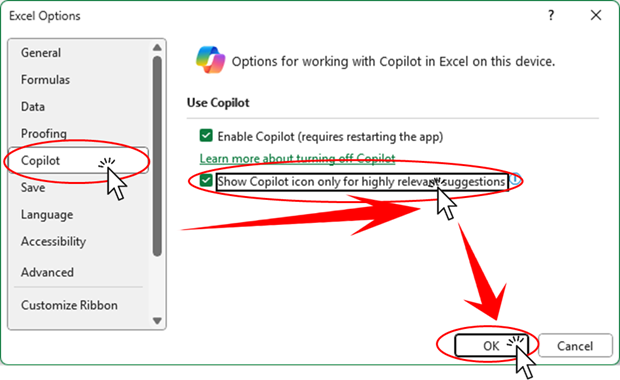
Now, if there are no specific suggestions, the "Copilot" mark will no longer be displayed.
Always show Copilot features
Click options
Check "Enable Copilot"
Uncheck "Show Copilot icon only for relevant suggestions" within Copilot and click the "OK" button.
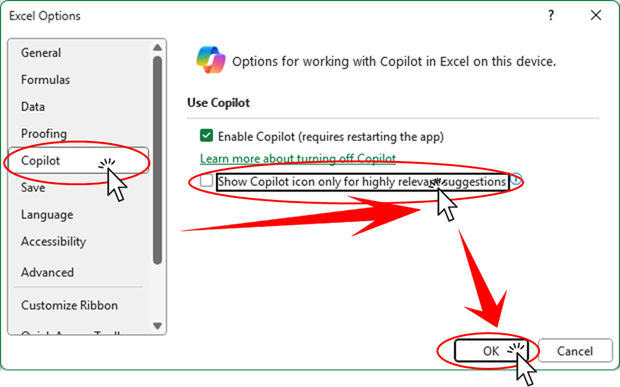
This has now returned to the state where the "Copilot" mark is always displayed.
Pros and cons of showing only relevant suggestions
Advantages
- You can usually choose not to display the "Copilot" mark.
- You can have it automatically displayed when there is a proposal.
demerit
- You cannot control when it is not displayed and when it is displayed.
- When I set it, the settings change in other Excel files as well.
4. Move the mouse away
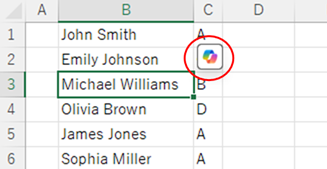
When you move the mouse cursor away, the "Copilot" mark can also be hidden depending on the distance between the mouse cursor and the "Copilot" mark.
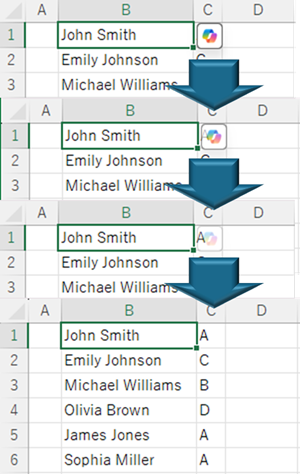
The "Copilot" mark will reappear when you hover the mouse cursor over it again.
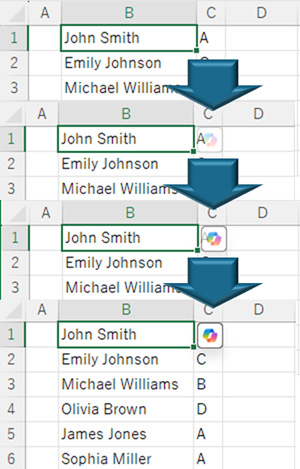
Pros and cons of moving the mouse away
Advantages
- It's easy because you just need to move the mouse cursor away without any special operation.
demerit
- The mark gets in the way when you move the mouse cursor close to it.
Summary
Above, we introduced four ways to hide or remove the "Copilot" icon.
- Hide Copilot mark until next open
- Show Copilot suggestions only when available.
- Disable Copilot
- Move the mouse away
Each method has its advantages and disadvantages, so please use them differently depending on the situation.


 English
  日本語
日本語
Comment