Sponsored Links
Excel Macro (VBA)

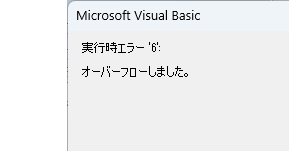
VBA "Overflow occurred." Error cause and remedy (runtime error '6′:)

Cause of ErrorThis error occurs when the data type is not in a format that can be handled, or when the data type exceeds the range of numbers that can be handled. First, let's reproduce the error. As shown in the figure above, we have set up the code to copy the numeric value in cell "B3" to cell "B4".
Excel Macro (VBA)

How to Disable Automatic Calculation in Excel VBA to Speed Up Your Macros

Learn how to disable automatic calculation in Excel VBA to dramatically speed up your macros. Simple code examples and performance tips included. Boost your Excel automation today!
Excel Macro (VBA)

"How to Create Your First Excel Macro (Beginner’s VBA Guide)

To write a VBA, you start with the "Development" tab, which is not present by default. Click on the File tab, then click on the option...
Excel Macro (VBA)

Color every other line alternately to make stripes

When creating a table, it is possible to make the table very easy to read if each row is colored alternately and striped. In this issue, we will show you three ways to do this. How to use the table functionHow to set up a tableSelect a cell anywhere in the table you want to make a table and click "Insert...
Excel Functions

Linking two pull-downs (drop-downs) without macros (when reflected in multiple rows) Excel (Excel)

A must-see for those who want to create Excel linked multi-row dropdowns! This article explains in detail how to link multi-row dropdowns without macros. In fact, it can be easily achieved with the INDIRECT function and named ranges. Reading this article will enable you to create efficient spreadsheets.
Sponsored Links
en_USEnglish
Copied title and URL