Sponsored Links
Excel Functions

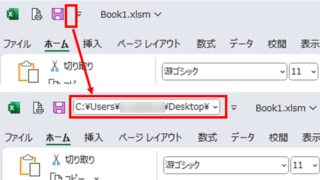
Allows you to see the address where the book is saved Excel (Excel)

You can display the path in the toolbar so that you can always see the address where you saved your Excel book. We will show you how to do this in this article. Click on the "File" tab, click on "Options", click on "Quick Access Toolbar" > "All...", and then click on "Quick Access Toolbar" > "Quick Access Toolbar" > "All...".
Excel Functions

How to apply mosaic (blur) Excel

When you are preparing a document or manual for external publication, you may need to refer to a web site or a screen where non-public information is visible. In such a case, you would like to put a mosaic like this on the non-public part. We will explain this method in detail in this issue...
Excel Macro (VBA)

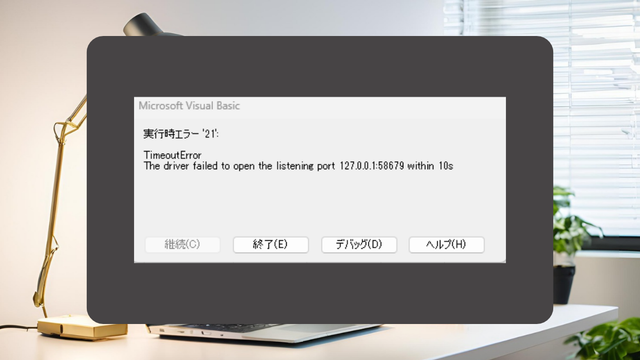
[SeleniumBasic bug] VBA (macro) suddenly stopped working in Excel

To those who have suddenly encountered an error and have had their system become unresponsive with SeleniumBasic. The cause may be the Windows Update "KB5127936" released on October 29, 2026. This article explains the mechanism of the cause and provides emergency measures to uninstall the update.
Excel Macro (VBA)

About Variable Types Excel(Excel) Macro(VBA)

This section explains the types used when declaring variables in "Dim Variables". Here are some typical types of variables that you only need to remember. I almost always use only these. Variable typeThe range of data that can be storedstring stringlong integer (-2,14...)
Excel Functions

How to extract characters before a specific character "LEFT and FIND functions in Excel"

As shown in the figure below, if there is extra data after the string and you want to extract only the string to the left of the extra data, you cannot simply use the LEFT function alone because the number of characters is not constant. Function to extract the left side of the "¥" mark in cell "A2" = LEFT(A2,FIND(...))
Sponsored Links
en_USEnglish
Copied title and URL