Sponsored Links
Excel Functions

3 Easy Ways to Hide or Show Zero Values in Excel: Simple Formatting Tips

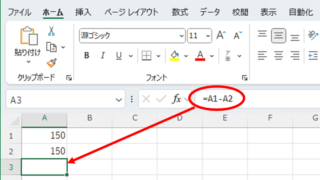
As shown in the figure below, when "A1" cell contains 150 and "A2" cell also contains the same number, 150, the calculation result of "=A1-A2" is "0" zero. There are three ways to avoid displaying numbers when the result of the calculation is "0" zero. The result of the calculation is "0" zero...
Excel Functions

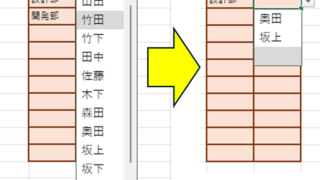
Linking two pull-downs (drop-downs) without macros (when reflected in multiple rows) Excel (Excel)

A must-see for those who want to create Excel linked multi-row dropdowns! This article explains in detail how to link multi-row dropdowns without macros. In fact, it can be easily achieved with the INDIRECT function and named ranges. Reading this article will enable you to create efficient spreadsheets.
Excel Functions

How to Disable the Copilot Icon in Excel (4 Simple Ways)

Many of you may have recently started seeing a "Copilot" icon like the one above in Excel. Copilot has many convenient features, but it can be annoying when it constantly pops up every time you select a cell. So, this time...
Excel Functions

How to extract characters before a specific character "LEFT and FIND functions in Excel"

As shown in the figure below, if there is extra data after the string and you want to extract only the string to the left of the extra data, you cannot simply use the LEFT function alone because the number of characters is not constant. Function to extract the left side of the "¥" mark in cell "A2" = LEFT(A2,FIND(...))
Sponsored Links
en_USEnglish
Copied title and URL