When macros are slow, various measures are introduced, such as "stopping screen updates" and "not using Select." However, it is not well known how effective any of these measures are.
So, I actually measured and compared the seven measures that are often mentioned.
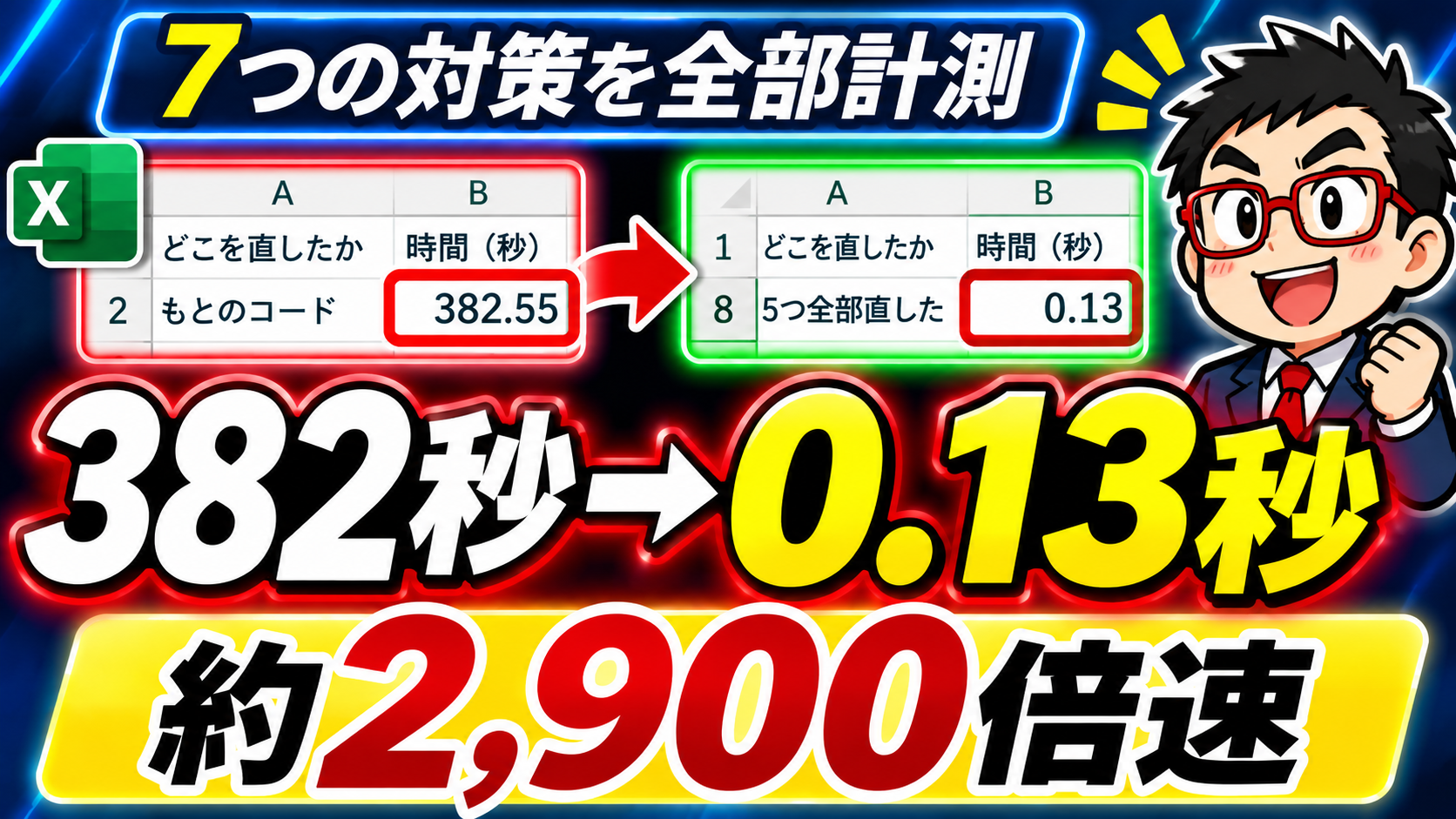
To conclude, the most effective one isStop using copy-pasting and Select, and enter the cell value directly.By simply stopping these two things, the macro that took 382 seconds became 0.67 seconds.
How to measure the time of a macro
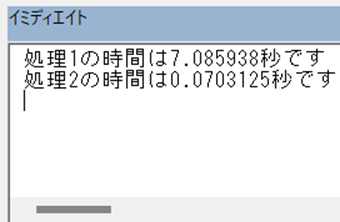
Time is a VBATimerThen we will calculate it.TimerIt returns the number of seconds from 00:00 that day. The difference between before and after the start is the time it took.
Dim start time As Double
Start time = Timer

(Process to be calculated)

MsgBox Round(Timer - Start time, 2) & 'seconds"
When fixing a slow macro, first measure it with this method and then see if it has had any effect.
The method of calculating the time spent in between processes is described here.
Test 1: Compare five countermeasures one by one
I tried creating a macro that would copy the sales list (500 rows x 10 columns) to another sheet. I created five macros that fixed just one thing from the “original code,” which I deliberately wrote slowly. I counted the total of these five macros.
The original code
Sub original code()
    Dim r As Long, c As Long
    For r = 2 to 501
        For c = 1 to 10
            Sheets("source data").Select
            Cells(r, c).Select
            Selection.Copy
            Sheets("new destination").Select
            Cells(r, c).Select
            Selection.PasteSpecial Paste:=xlPasteValues
        Next c
        Format each line separately
        Range(Cells(r, 1), Cells(r, 10)).Borders.LineStyle = xlContinuous
        Cells(r, 1).NumberFormat = 'yyyy/mm/dd"
        Range(Cells(r, 8), Cells(r, 9)).NumberFormat = "#,##0"
    Next r
    Application.CutCopyMode = False
End Sub
The reasons for the delay are the following five:
- The screen hasn't stopped updating.
- I'm selecting the sheet or cell and then performing the operation.
- It's being photographed with a copy-and-paste function.
- I'm adding formatting one line at a time.
- They are shooting one cell at a time.
If you run it382 secondsIt took (6 minutes or more), and I also got a "clipboard error" in the middle.
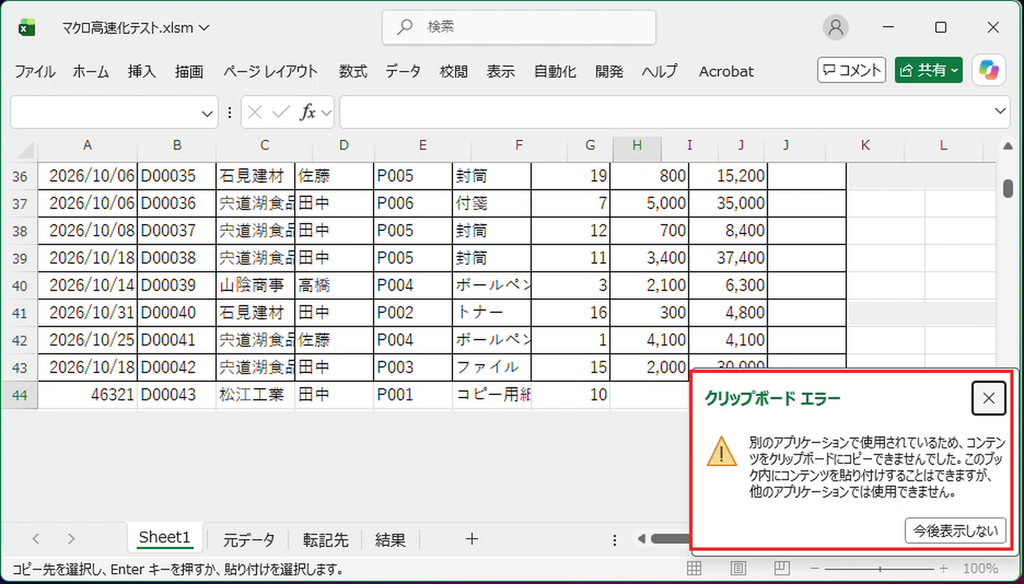
The cause of this error and how to fix it are detailed here.

The result was that I fixed each one one by one.
| Where I corrected it | Time | How many times faster than the original? |
|---|---|---|
| The original code | 382 seconds | - |
| Stop updating the screen | 151 seconds | 2.5 times |
| Stop selecting | 350 seconds | 1.1 times |
| Stop copying and pasting | 104 seconds | 3.7 times |
| Organize the formatting | 367 seconds | 1.0 times |
| Transcribed in one line | 68 seconds | 5.7 times |
| Fix all five of them | 0.13 seconds | About 2,900 times |
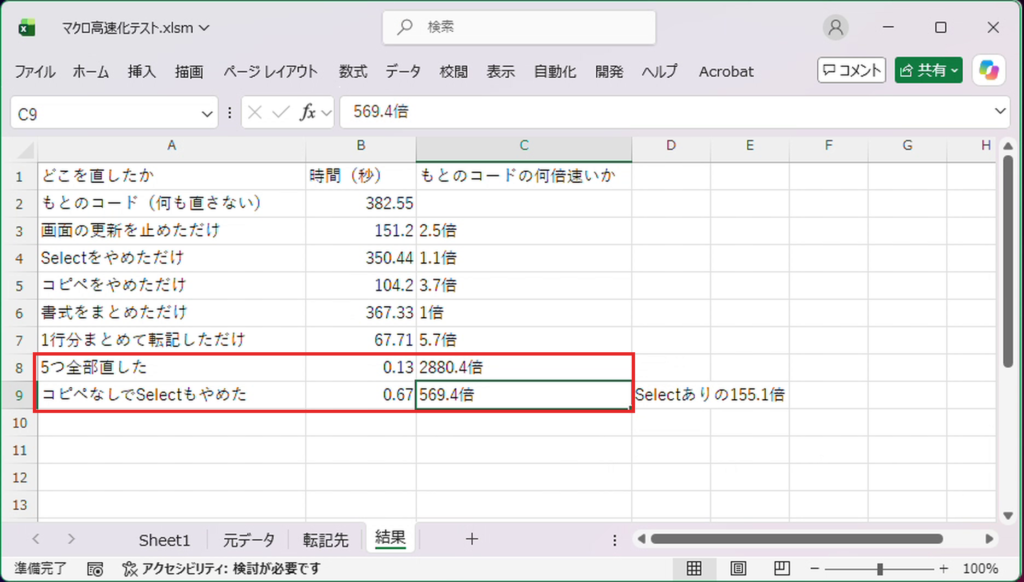
Even with the "one line at a time" method, which was the most effective one, it still yields a 5.7x increase. The formatting and Select buttons remained almost unchanged.
Code that fixes all 5 things
Sub All the code has been fixed()
    Dim r As Long
    Dim As Worksheet, Then As Worksheet
    Set Original = Sheets("Original Data")
    Set First = Sheets("Destination")

    Application.ScreenUpdating = False
    For r = 2 to 501
        It doesn't select or copy anything; it just puts the values from one line together.
        First.Range(First.Cells(r, 1), First.Cells(r, 10)).Value = _
            Original.Range(original.Cells(r, 1), original.Cells(r, 10)).Value
    Next r

    ' The form is compiled once at the end
    First.Range(First.Cells(2, 1), First.Cells(501, 10)).Borders.LineStyle = xlContinuous
    First.Range(First.Cells(2, 1), First.Cells(501, 1)).NumberFormat = 'yyyy/mm/dd"
    First.Range(First.Cells(2, 8), First.Cells(501, 9)).NumberFormat = "#,##0"
    Application.ScreenUpdating = True
End Sub
If you straighten everything out,0.13 secondsIt has increased by about 2,900 times.
However, even if we multiply each ratio by approximately 58 times, it still won’t be enough. This is because the countermeasures are affecting each other. In the next chapter, we will try all the combinations and confirm the results.
Compare it with 32 different combinations
There are five possible combinations of measures, so the total number of possible combinations is 32: 2×2×2×2×2.
Out of 32 streets,Only one measure is different between the twoBy comparing the two, you can see the effectiveness of the respective measures. For example, the two differences were 269 seconds and 141 seconds, a 1.9-fold difference.
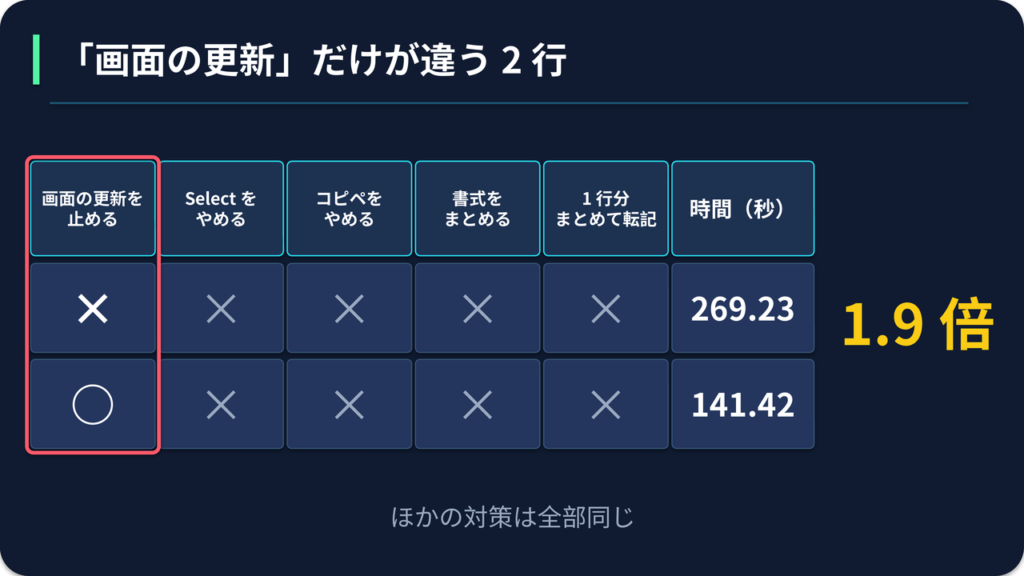
This comparison can be applied to 16 groups per measure. The average of these results is shown in the following graph.
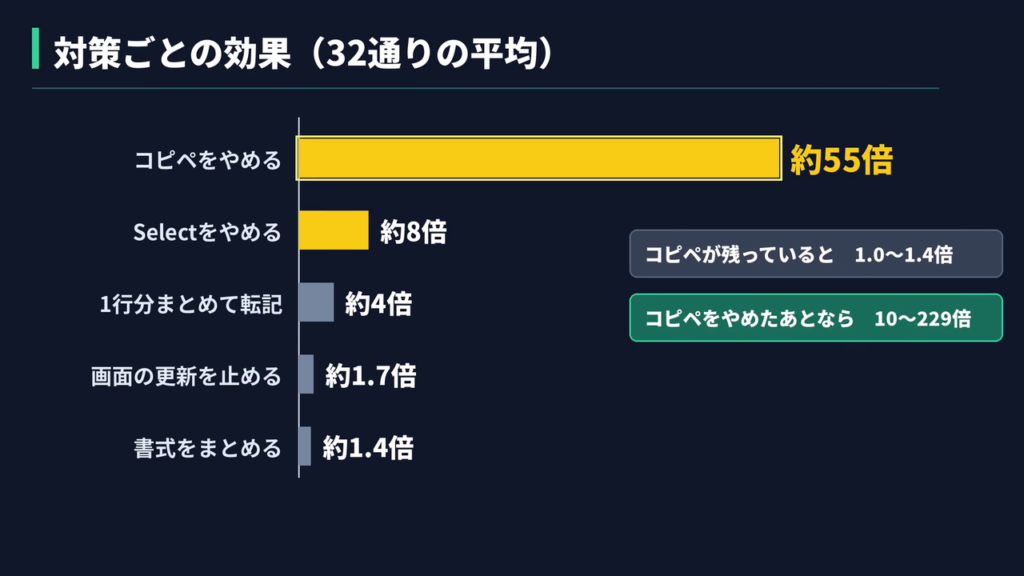
| counter-measure | Effect (average of 32 ways) |
|---|---|
| Stop copying and pasting | About 55 times |
| Stop selecting | About 8 times |
| Transcribed in one line | About four times |
| Stop updating the screen | About 1.7 times |
| Organize the formatting | About 1.4 times |
When I tried them one by one, the "transferring all the data in one row" option came in third place with a score of 5.7 times better than the other options."Stop copying and pasting" is by far the best one.It has become that.
Select works after you stop copying and pasting.
When I tried them one by one, the results were mostly unchanged. Select is the second one on the list. So I compared four combinations of Select and copy-paste (I didn’t include any other measures).
| With copy-pasting included | No copy-pasting | |
|---|---|---|
| Select available | 382 seconds | 104 seconds |
| No Select | 350 seconds | 0.67 seconds |

As long as the copy paste remains, switching to Select doesn't change the time much; however, after the copy paste is stopped, 104 seconds become 0.67 seconds,About 155 timeswill be.
The same is true if you look at it in reverse order. After you stop selecting, copying will take 0.67 seconds instead of 350 seconds, which is about 520 times faster.
32 possible results (all of them)
○ has taken those measures, while x has not. "What times" is the speed compared to the version that does nothing to fix the problem (the 1st version).
| Number | Screen update | Select | Copy and paste | Format | Summary of 1 line | Time | How many times |
|---|---|---|---|---|---|---|---|
| 1 | NG | NG | NG | NG | NG | 269.23 seconds | - |
| 2 | OK | NG | NG | NG | NG | 141.42 seconds | 1.9 times |
| 3 | NG | OK | NG | NG | NG | 186.83 seconds | 1.4 times |
| 4 | OK | OK | NG | NG | NG | 130.7 seconds | 2.1 times |
| 5 | NG | NG | OK | NG | NG | 68.39 seconds | 3.9 times |
| 6 | OK | NG | OK | NG | NG | 18.64 seconds | 14.4 times |
| 7 | NG | OK | OK | NG | NG | 0.51 seconds | 527.9 times |
| 8 | OK | OK | OK | NG | NG | 0.45 seconds | 598.3 times |
| 9 | NG | NG | NG | OK | NG | 236.82 seconds | 1.1 times |
| 10 | OK | NG | NG | OK | NG | 137.67 seconds | Twice as much |
| 11 | NG | OK | NG | OK | NG | 164.57 seconds | 1.6 times |
| 12 | OK | OK | NG | OK | NG | 126.83 seconds | 2.1 times |
| 13 | NG | NG | OK | OK | NG | 66.41 seconds | 4.1 times |
| 14 | OK | NG | OK | OK | NG | 18.93 seconds | 14.2 times |
| 15 | NG | OK | OK | OK | NG | 0.29 seconds | 928.4 times |
| 16 | OK | OK | OK | OK | NG | 0.27 seconds | 997.1 times |
| 17 | NG | NG | NG | NG | OK | 54.26 seconds | 5 times |
| 18 | OK | NG | NG | NG | OK | 40.14 seconds | 6.7 times |
| 19 | NG | OK | NG | NG | OK | 45.94 seconds | 5.9 times |
| 20 | OK | OK | NG | NG | OK | 40.66 seconds | 6.6 times |
| 21 | NG | NG | OK | NG | OK | 10.34 seconds | 26 times |
| 22 | OK | NG | OK | NG | OK | 2.17 seconds | 124.1 times |
| 23 | NG | OK | OK | NG | OK | 0.25 seconds | 1,076.9 times |
| 24 | OK | OK | OK | NG | OK | 0.22 seconds | 1,223.8 times |
| 25 | NG | NG | NG | OK | OK | 51.82 seconds | 5.2 times |
| 26 | OK | NG | NG | OK | OK | 41.79 seconds | 6.4 times |
| 27 | NG | OK | NG | OK | OK | 45.32 seconds | 5.9 times |
| 28 | OK | OK | NG | OK | OK | 39.05 seconds | 6.9 times |
| 29 | NG | NG | OK | OK | OK | 7.47 seconds | 36 times |
| 30 | OK | NG | OK | OK | OK | 1.91 seconds | 141 times |
| 31 | NG | OK | OK | OK | OK | 0.05 seconds | 5,384.6 times |
| 32 | OK | OK | OK | OK | OK | 0.06 seconds | 4,487.2 times |
*The 32 measurements were taken on a different day than Test 1, so the numbers are slightly different from Test 1 (the version that didn’t fix anything took 269 seconds, the version that fixed everything took 0.06 seconds).
From the macro that fixes everything, if I return just one of them
Conversely, from the macro that fixed everything (0.06 seconds), I tried to remove just one measure.
| Measures taken to avoid it | Time | How many times slower is the version that's all fixed? |
|---|---|---|
| Restore the copied text | 39 seconds | About 650 times |
| Return to Select | 1.9 seconds | About 32 times |
| Return a single row summary | 0.27 seconds | About 4.5 times |
| Return the formatting | 0.22 seconds | About 3.7 times |
| Return the screen refresh | 0.05 seconds | Still the same |
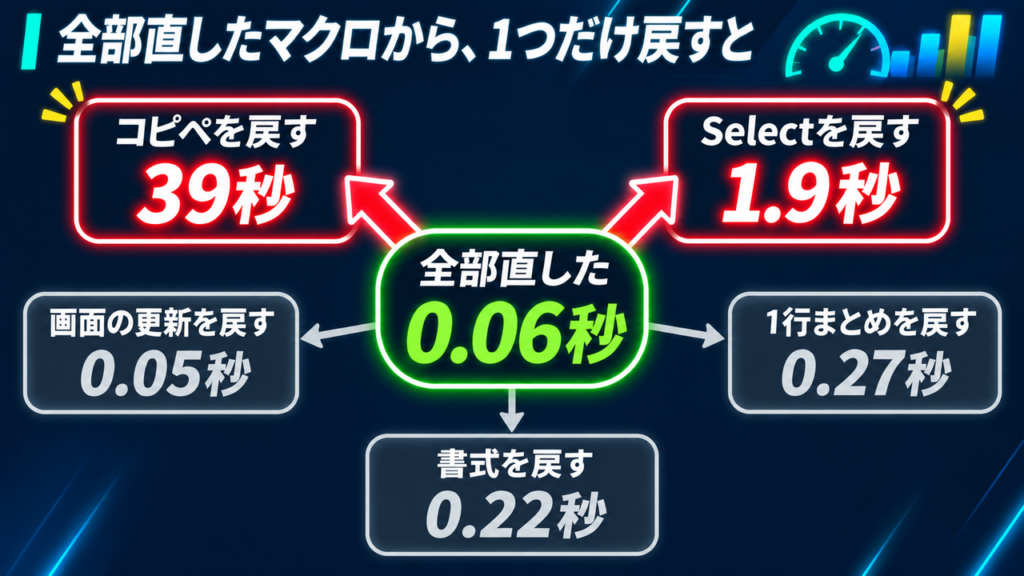
Even if you apply all the other measures, if Copypaste and Select are left one by one, the macro will be slower.
Both Copypaste and Select are ways of "selecting and manipulating cells." Even if you don't write Select in the code, the process of selecting cells in Excel is the same every time you copy and paste. So, even if you stop using one of them, it won't be faster. If you stop using both of them and enter the values directly without selecting a cell, you'll see a significant improvement immediately.
In other words, just trying one by one won't give you a true understanding of Select's true effect. When fixing slow macros,First stop copying, then stop selecting.The "Cell" option is the quickest way to go. Please look for the "Cell" option when you are operating it.
Test 2: Stop automatic calculation
The second test is an automatic calculation. I entered 1,395 formulas in the "Aggregate" sheet to calculate the total for each date and by each salesperson, and then transferred the sales list to 500 rows.
Excel recalculates the formula every time you enter a value in a cell. If you type 500 lines in one row, that’s 500 recalculations. So, just stop the automatic calculation for the macro for the last line and return to it.
Application.Calculation = xlCalculationManual ' Stop automatic calculation

For r = starting row To final row
    First.Range(First.Cells(r, 1), First.Cells(r, 10)).Value = _ Original.Range(First.Cells(r, 1), First.Cells(r, 10)).Value Next r

Application.Calculation = xlCalculationAutomatic ' Return to the last
If you keep using automatic calculation,4.93 secondsIf you stop it,0.15 secondsIt has become about 33 times faster. Even the calculation for the last time is included in the time calculation.
The formula for the final row is here.
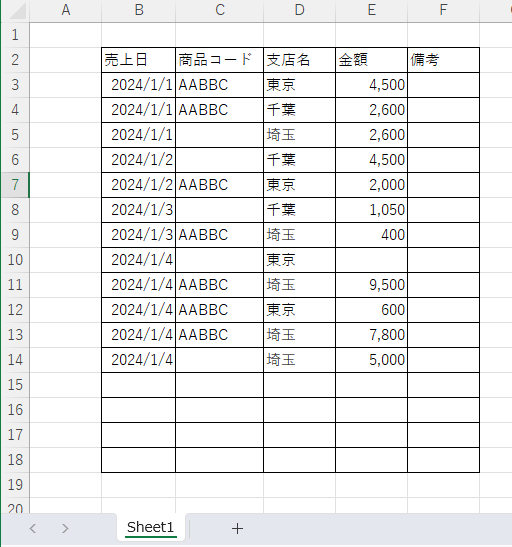
The basic way to stop automatic calculation is here.
Pitfalls of macros that use calculated results in the middle of the calculation
However, caution is required when using the calculation results halfway through the macro to make a judgment.
For example, every time a line of entries is entered, I look at the total amount on the aggregation sheet (D1), and if it exceeds the maximum limit of 9.5 million yen (B1), I stop the macro.
Set Total Cells = Sum.Cells(1, 4) ' Total amount (D1)

For r = starting row To final row
    First.Range(First.Cells(r, 1), First.Cells(r, 10)).Value = _ Original.Range(Original.Cells(r, 1), Original.Cells(r, 10)).Value If TotalCell.Value > UpperLimit Then Exit For ' Stop if it exceeds the upper limit. Next r
If it were just automatic calculation, it would have stopped correctly at the 356th attempt in 3.36 seconds.
However, if you keep the automatic calculation running while moving it, it will move at a speed of 0.23 seconds, which is still fast.I ended up writing down all 500 items.The total amount is 1,361 million yen, which exceeds the upper limit by more than 4 million yen.
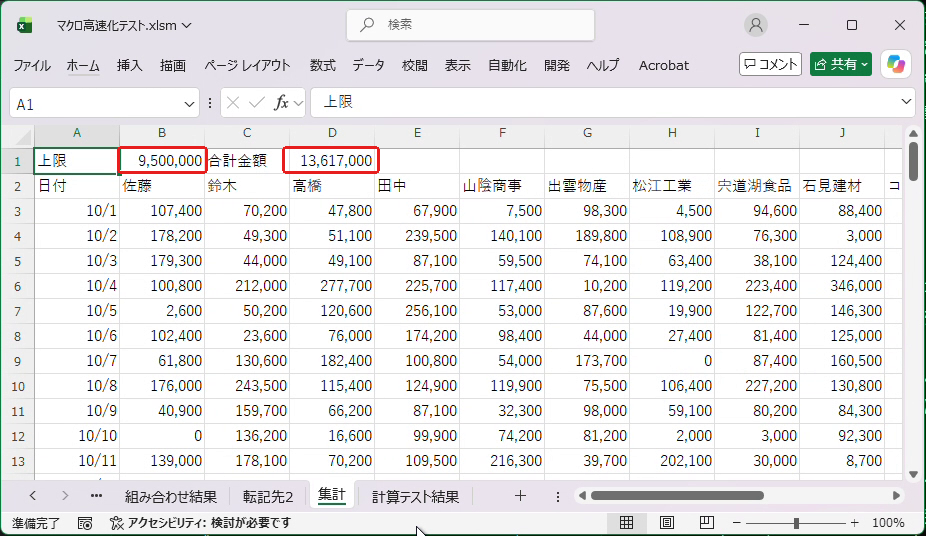
When the automatic calculation is stopped, the cell containing the total amount remains outdated, so the macro appears to be saying that it hasn’t reached the maximum yet. Even though there are no errors, only the results are wrong. This is the most frightening part. The lack of stopping is shown in the video (from 13:45).
The method of rectification is to have the cell used for judgment calculate only before reading it.
Application.Calculation = xlCalculationManual Set Total Cells = Set.Cells(1, 4)

For r = starting row To final row
    First.Range(First.Cells(r, 1), First.Cells(r, 10)).Value = _ Original.Range(Original.Cells(r, 1), Original.Cells(r, 10)).Value Total Cells.Calculate ' Calculate only this cell If Total Cells.Value > Upper Limit Then Exit For
Next r

Application.Calculation = xlCalculationAutomatic
The result is0.21 secondsIn the 356th case, it stopped correctly and the speed was almost the same as before.
"Then every time..."Application.CalculateYou might think that you can just calculate the entire workbook, but when I tried it, it took 3.31 seconds, and it didn't change from using automatic calculation. Only use the cells that need to be calculated.
| How to do it | Time | Number of cases | Results |
|---|---|---|---|
| A: Leave it to automatic calculation | 4.93 seconds | 500 items | - |
| Stop B and return to the last position | 0.15 seconds | 500 items | - |
| C Automatically calculate and stop at the upper limit | 3.36 seconds | 356 items | Right |
| D Stop it and stop at the maximum limit. | 0.23 seconds | 500 items | Mistake |
| Stop E, and only calculate the total cells | 0.21 seconds | 356 items | Right |
| Stop F and calculate the entire book each time. | 3.31 seconds | 356 items | Right |
Stopping automatic calculation is very effective in books with many formulas. In fact, if the book doesn't have many formulas at all, stopping it won't make much difference.
Test III: Avoiding double loops
The third test is a double loop. For each product code in the sales list, find the product name in the product master and enter it in column D. This is a common matching task.
For i = 2 To 1001 ' List items one by one For j = 2 To 1001 ' Search all the product masters from the top If Sales.Cells(i, 1).Value = Sales.Cells(j, 1).Value Then Sales.Cells(i, 4).Value = Sales.Cells(j, 2).Value
        End If
    Next j
Next i
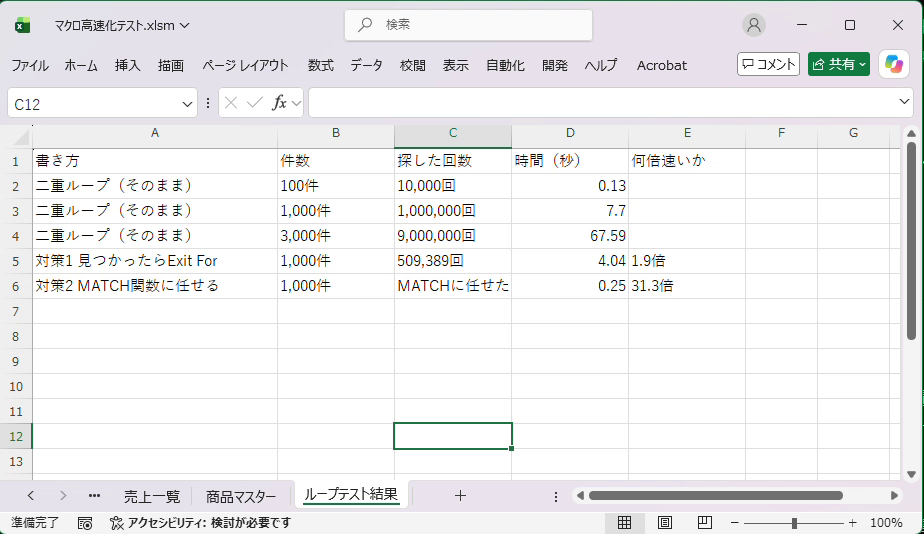
If sales are 1,000 items and products are 1,000 items, the number of searches is 1,000 x 1,000 = 1 million times. If the number of items doubles to 3,000, it increases to 9 million times at 900,000 searches.
| Number of cases | Time |
|---|---|
| 100 items | 0.13 seconds |
| 1,000 items | 7.7 seconds |
| 3,000 items | 67.59 seconds |
Although the number of incidents is tripled, the time required is approximately nine times longer. Often, the macro that says "it was fast at first, but as the data increased, it suddenly became slow" is caused by this double loop.
Action 1: If you find it, stop looking for it.
For i = 2 to 1001
    For j = 2 to 1001
        If Sales.Cells(i, 1).Value = Sales.Cells(j, 1).Value Then
            Sales.Cells(i, 4).Value = Sales.Cells(j, 2).Value
            Exit For 'If found, don't look for the rest.'
        End If
    Next j
Next i
At 1,000 items4.04 secondsThe number of searches has almost halved to about 510,000, and the time has also almost halved. However, since it is only half, the nature of the increase in the number of searches will not change, as it will still slow down immediately as the number of searches increases.
Solution 2: Leave the search to the MATCH function
Set code column = Ma.Range(Ma.Cells(2, 1), Ma.Cells(1001, 1))

For i = 2 to 1001
    Position = WorksheetFunction.Match(Sales.Cells(i, 1).Value, CodeColumn, 0) Sales.Cells(i, 4).Value = Sales.Cells(position + 1, 2).Value Next i
I stopped using the inner loop and left the search to the Excel MATCH function. The result is0.25 secondsIt became about 31 times faster.
*The MATCH function will return an error if it cannot be found. If there is a code that is not present in the product master, please add the handling for the error.
The usage of the MATCH function is also explained in detail here.

An example of using worksheet functions from macros is also introduced here.
The stopped setting must be restored.
After stopping the screen refresh or automatic calculations, please always return it to its original state at the end.
What you need to pay special attention to is when the macro stops due to an error in the middle. You won’t be able to get to the line that returns it, so Excel may remain in “manual calculation” mode. In that case, even if you enter the formula manually afterwards, the calculation won’t be performed.
The way to prevent this is as follows:
On Error GoTo Returns Settings Back 'If an error occurs, it will jump to 'Reset Settings'.
Application.Calculation = xlCalculationManual

For r = 2 to 501
    " (Processing of transcripts)
Next r

Return the settings:
Application.Calculation = xlCalculationAutomatic " Restore automatic calculation
If Err.Number  0 Then MsgBox "Error: " & Err.Description
Even if an error occurs in the middle, it will go to "Reset Settings," so the automatic calculation will not stop. Even when it works, it will go back through the same line.
Use the macros you use yourself and the ones you hand out to others.
This writing style has a weakness. Even if an error occurs, it will jump to "Reset Settings," so as usual, the line with the error will light up yellow and stop working.
| Macros for personal use | Macro to be passed to people |
|---|---|
| Do not include On Error | On Error GoTo returns the setting to its original value. |
| The line with the error lights up in yellow and stops, so you can immediately see where the problem is. | Even if there is an error, the settings can be restored and the process can be completed, so it doesn't remain in manual calculation mode. |
| If it stops, you can reset the calculation method to "automatic" yourself. | The error details are communicated in a message. |
When the formula stops calculating
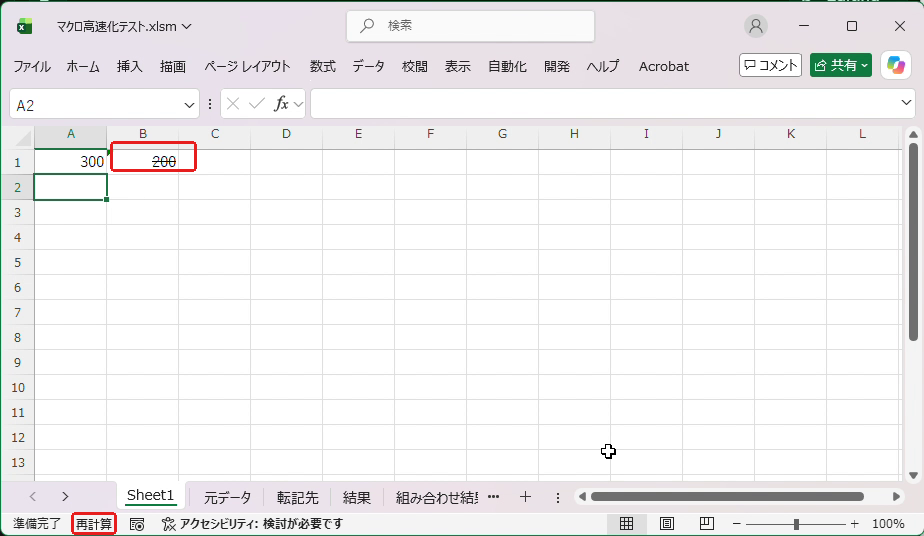
Make sure that the "Calculation Method Settings" in the "Calculations" tab is not set to "Manual." If it is set to "Manual," a dotted line appears next to the numbers in the cells that haven't been calculated, and "Recompute" appears at the bottom of the screen. Returning it to "Automatic" will recalculate. This indicator can be seen in the video (from 19:30).
The method of calculating is introduced with a screen in this article.
Two common misconceptions
Misconception 1: Setting it to stop will make it faster in the short term.
Turning the screen refresh off and on repeatedly during a loop will actually slow it down. Only turn it off once at the beginning and only turn it back on once at the end.
'NG: On and off every time in the loop
For r = 2 to 501
    Application.ScreenUpdating = False
    ' (Processing of transcripts)
    Application.ScreenUpdating = True
Next r

OK: First one time, last one time
Application.ScreenUpdating = False
For r = 2 to 501
    ' (Processing of transcripts)
Next r
Application.ScreenUpdating = True
Mistake 2: If you strictly define the type of variables, it will be faster
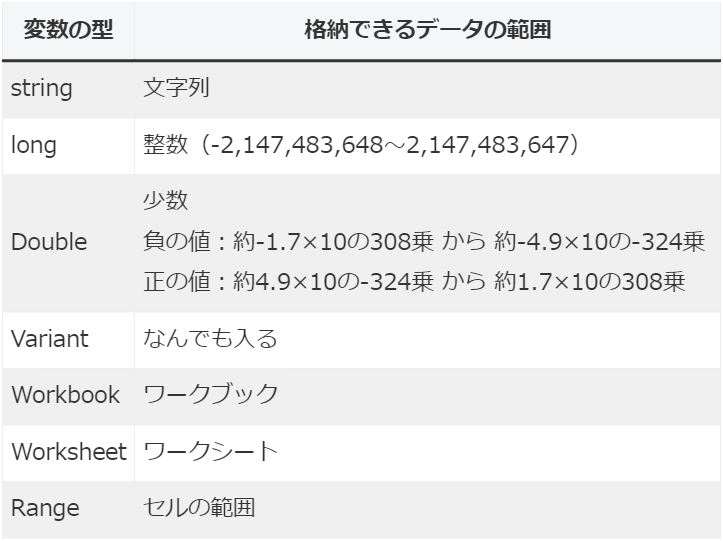
Determining the mold will make it a little faster, but it is only a very small amount compared to the time it takes to touch the cell. Consider the mold to be something that is determined not for speed, but to prevent mistakes.
Types and usage of molds are here.
Summary
When we compare the seven measures, we can group them into two categories:
| Thinking | counter-measure |
|---|---|
| Reduce the number of times you touch the cells and sheets | Stop updating the screen, stop selecting, stop copying and pasting, format the text, combine multiple lines into one, stop automatic calculations. |
| Reduce the number of processing steps | Avoid double loops |
Among them, the most effective is:Stop using copy-pasting and Select, and enter the cell value directly.If you find a slow macro, firstTimerThen measure it and try it directly from the "where you are selecting and operating the cell."
When stopping automatic calculation, please check if the calculation has not been used in the middle, and if so, whether it can be resumed with an error message.


 English
 日本語
Comment