Manager

Sponsored Links
Excel Macro (VBA)

How to use the input screen "InputBox" Excel Macro (VBA)

If you want to use values or arbitrary characters that do not exist in Excel, the "InputBox" is useful to easily create an input screen during macro execution. In this article, we will briefly explain how to use this "InputBox".
Excel Functions

The two reasons for garbled csv files and how to fix them [Thorough explanation by an Excel master] Windows version.

"Huh? What is this?" Have you ever opened a CSV file in Excel only to find that the text in the file is a series of unintelligible symbols? Yes, you are now facing a troublesome problem called "garbled characters," which is a common problem that many people suffer from...
Excel Functions

How to Prefer Manual Fill to Conditional Formatting Excel (Excel)

Conditional formatting is a very useful feature that automatically fills in or changes formatting based on specified conditions. However, many of you may have experienced the problem that conditional formatting takes precedence over manual filling. In this article, we will discuss how to use conditional formatting...
Sponsored Links
Excel Functions

Absolute and relative references in Excel (Excel)

Absolute and relative references are explained below. Relative reference: If you want to display the same contents in cell "C3" as in the neighboring cell "B3", enter the following in cell "C3": =B3. If you want to display the same content in cell "C3" as in the neighboring cell "B3", enter the following in cell "C3": =B3
Excel Macro (VBA)

[For Beginners] Step-by-Step Guide to Installing SeleniumBasic

This article offers a beginner-friendly, detailed guide to installing SeleniumBasic. Stuck on the installation and thinking about giving up on automation? The truth is, anyone can install it by taking it one step at a time. A professional with 20 years of experience teaching Excel will walk you through the process.
Excel Macro (VBA)

VBA "Overflow occurred." Error cause and remedy (runtime error '6′:)

Cause of ErrorThis error occurs when the data type is not in a format that can be handled, or when the data type exceeds the range of numbers that can be handled. First, let's reproduce the error. As shown in the figure above, we have set up the code to copy the numeric value in cell "B3" to cell "B4".
Excel Macro (VBA)

How to Find the Last Row in Excel Using VBA (Macro Guide for Beginners)

We show you how to search through the data from the top down, and how to start from the bottom row of the Excel file and work your way up.
Excel Functions

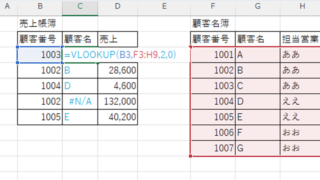
VLOOKUP function gives #N/A or #REF!

The VLOOKUP function is a very useful function for handling data, but many of you may have experienced that once you get stuck in the error swamp of #N/A or #REF! In this article, we will discuss how to use the VLOOKUP function to get rid of the #N/A and #REF!
Excel Functions

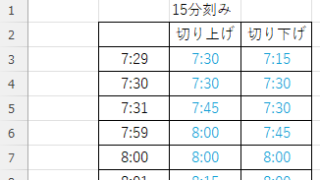
How to display time in 15-minute increments (CEILING and FLOOR functions) Excel

In the last issue, we introduced how to use the TIME function to display the time in 15-minute increments, 30-minute increments, etc. (TIME function) Excel pointed out that it would be easier to use the CEILING and FLOOR functions...
Excel Functions

How to Extract Data Using the VLOOKUP Function in Excel

Being able to use the VLOOKUP function will expand the range of data handling, and will help you be seen as an intermediate Excel user by beginners. In this article, we will show you how to use the VLOOKUP function, and how to use the INDEX and MATCH functions to compensate for the weaknesses of the VLOOKUP function...
Sponsored Links
Copied title and URL