Excel Functions

Sponsored Links
Excel Functions

For beginners] Explanation of causes of Excel being slow and countermeasures.

Manager, have you ever felt 'kind of heavy' when using Excel? Student Yes, sir! I recently started using Excel to improve my business, but I'm having trouble opening files because it takes so long. ManagerYes, that's right. Many people have the same problem...
Excel Functions

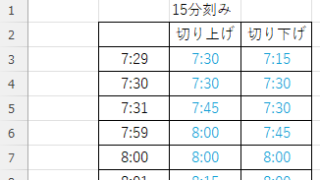
How to display time in 15-minute increments (CEILING and FLOOR functions) Excel

In the last issue, we introduced how to use the TIME function to display the time in 15-minute increments, 30-minute increments, etc. (TIME function) Excel pointed out that it would be easier to use the CEILING and FLOOR functions...
Excel Functions

How to use Excel (Excel) INDEX and MATCH functions in combination

We will show you how to display the desired data by combining the INDEX function, which refers to data from a table on another sheet, and the MATCH function. How to Write the INDEX Function There are two ways to write the INDEX function. INDEX(array, row number,) INDEX(reference, row number, , )
Sponsored Links
Excel Functions

Easy with Excel and Word! Mastering the art of address printing that anyone can do!

Have you ever had to worry about writing addresses for New Year's cards and summer greeting cards? Writing dozens of cards by hand is a lot of work, but buying specialized software is also a bit expensive.... Everyone has experienced this dilemma at least once. But the truth is, your computer...
Excel Functions

How to extract characters before a specific character "LEFT and FIND functions in Excel"

As shown in the figure below, if there is extra data after the string and you want to extract only the string to the left of the extra data, you cannot simply use the LEFT function alone because the number of characters is not constant. Function to extract the left side of the "¥" mark in cell "A2" = LEFT(A2,FIND(...))
Excel Functions

VLOOKUP function gives #N/A or #REF!

The VLOOKUP function is a very useful function for handling data, but many of you may have experienced that once you get stuck in the error swamp of #N/A or #REF! In this article, we will discuss how to use the VLOOKUP function to get rid of the #N/A and #REF!
Excel Functions

Excel: Color Cells When Input Doesn’t Match Dropdown List

In this article, you'll learn how to use conditional formatting in Excel to automatically change cell colors when a value entered doesn't match the dropdown list. If you've been struggling with errors during data aggregation using the VLOOKUP function, you're not alone. Fortunately, combining the MATCH and ISNA functions offers a simple and effective solution.
Excel Functions

Automatically create invoices from sales invoices 2 Excel (Excel)

Creating Invoices Automatically from Previous Sales Statements1 Continuing from Excel (Excel), we will create an invoice. Putting the details on the invoice (using a function)*Using the "FILTER" function using Spil*This one uses the Spil function, so you will need to use Microsoft365 or E...
Excel Functions

How to use the Spill function Excel (Excel)

I had neglected the "spill" feature implemented in Microsoft365 and Excel2021 for a while because I didn't really understand it, but when I tried it, I found it to be very useful. I found it to be very useful. Moreover, I thought that I could do a lot of things by applying this function...
Excel Functions

How to Prefer Manual Fill to Conditional Formatting Excel (Excel)

Conditional formatting is a very useful feature that automatically fills in or changes formatting based on specified conditions. However, many of you may have experienced the problem that conditional formatting takes precedence over manual filling. In this article, we will discuss how to use conditional formatting...
Sponsored Links
Copied title and URL