

I will explain how to shorten the space between images using wavy lines.
For example, I want to reduce the distance between these two people in the image pasted in Excel.

Install a wavy line
Select "Small wave" from the "Shapes" button in the "Insert" tab.
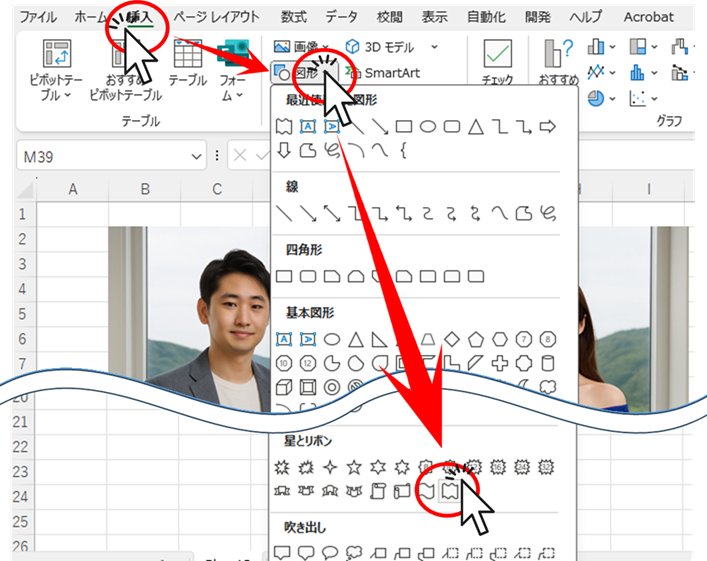
I'll paste some small wave graphics as I see fit.
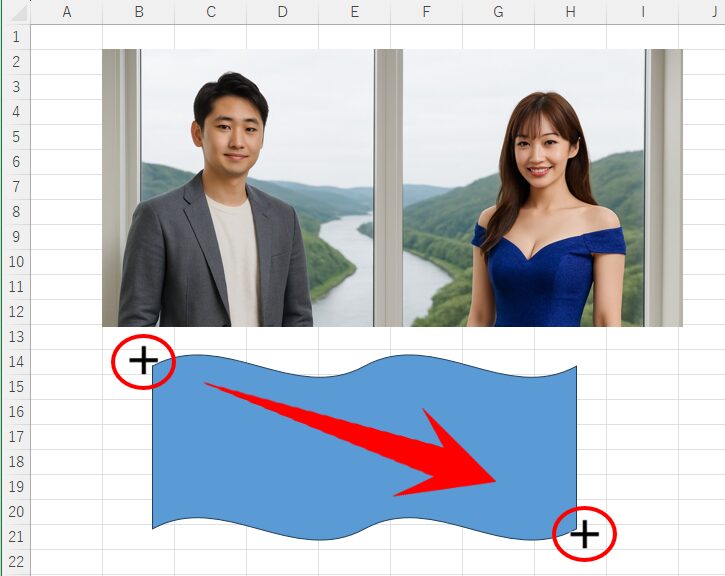
When you select a shape, a round arrow icon will appear, which you can drag to rotate it.
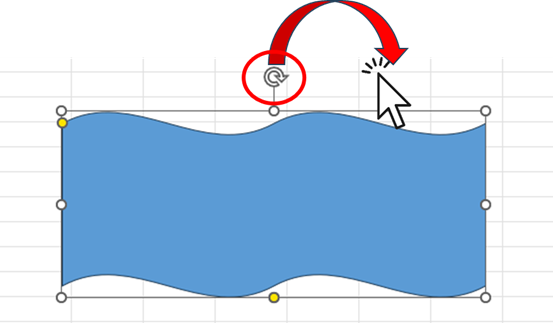
When the shape is rotated vertically, overlay the image on the image at the desired cropping position on the left.
In this case, the wavy line is better than the image.Let it stick out a little.That's the trick.

Next, adjust the shape and size of the figures to refine the wave's form.
The larger the size of the shape, the steeper the angle of the waves becomes, and the smaller the size, the gentler the angle of the waves becomes.
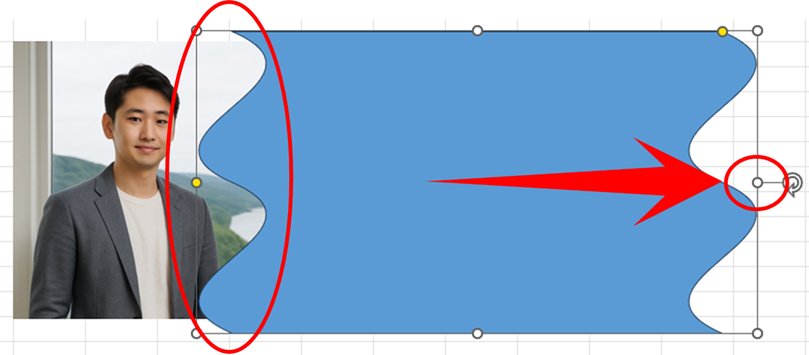
This is only to fix the shape of the wave on the left side, so you don't need to worry about how far the right side goes.
Move the small wave shape slightly to the right while holding down the Ctrl and Shift keys.
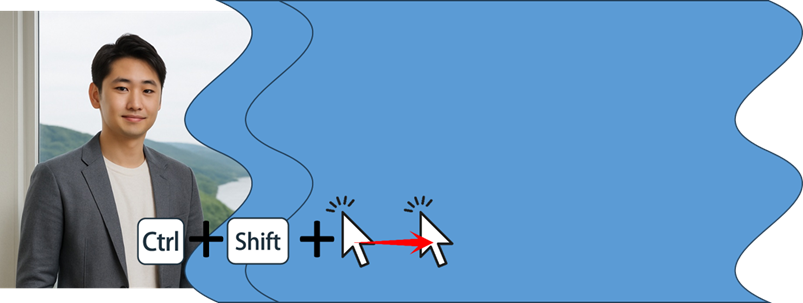
You can move it straight up, down, left, or right without shifting diagonally by holding down the Shift key while dragging.
You can copy shapes by pressing and holding the "Ctrl" key while dragging.
When the small wave patterns become two, select the bottom pattern, choose "Fill Color" in the "Home" tab, and change the color of the bottom pattern to "white" or another color.
This will be the color of the wavy line, so any color you like is fine.
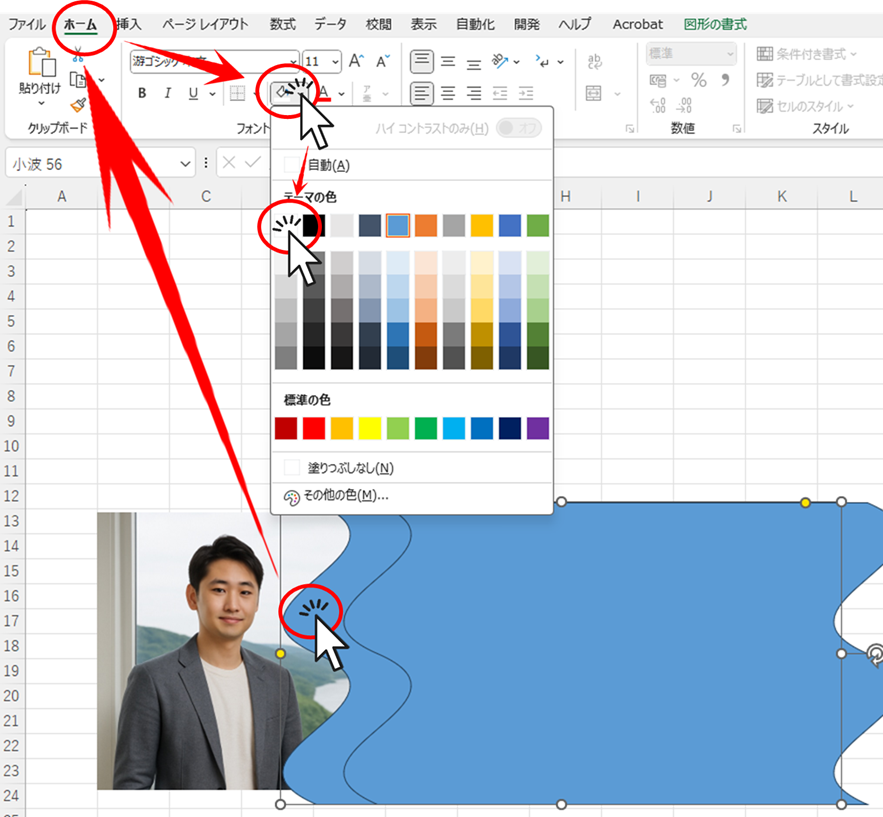
Once the dashed line color is adjusted, adjust the dashed line width.
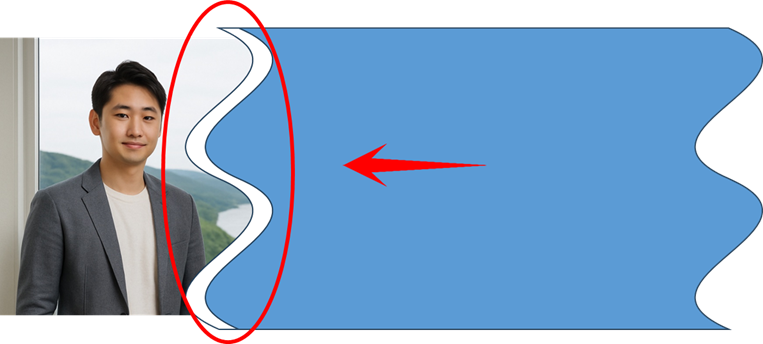
Press and hold the Shift key, then select the image and the three shapes: white small waves and blue small waves.
Press the Ctrl key and the C key to copy the shape.
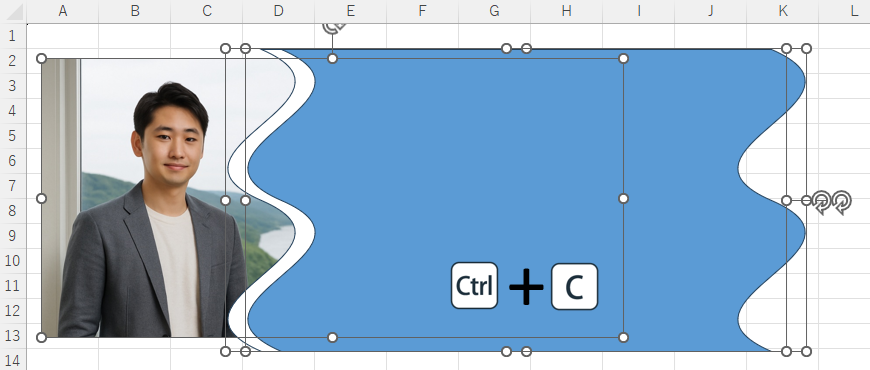
Slightly below, right-click the imagePaste as imageI will do it.
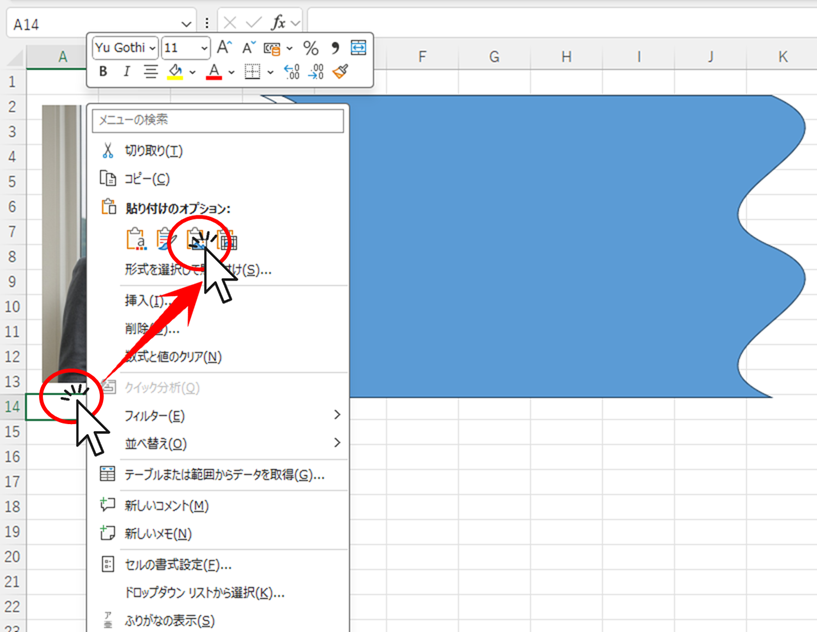
Instead of pasting this as isPaste as imageThat is the important part.
Set the background to transparent for the wavy line.
With the shape pasted selected, click the "Color" button on the "Format" tab, and then click "Set Transparent Color" at the bottom of the displayed menu.
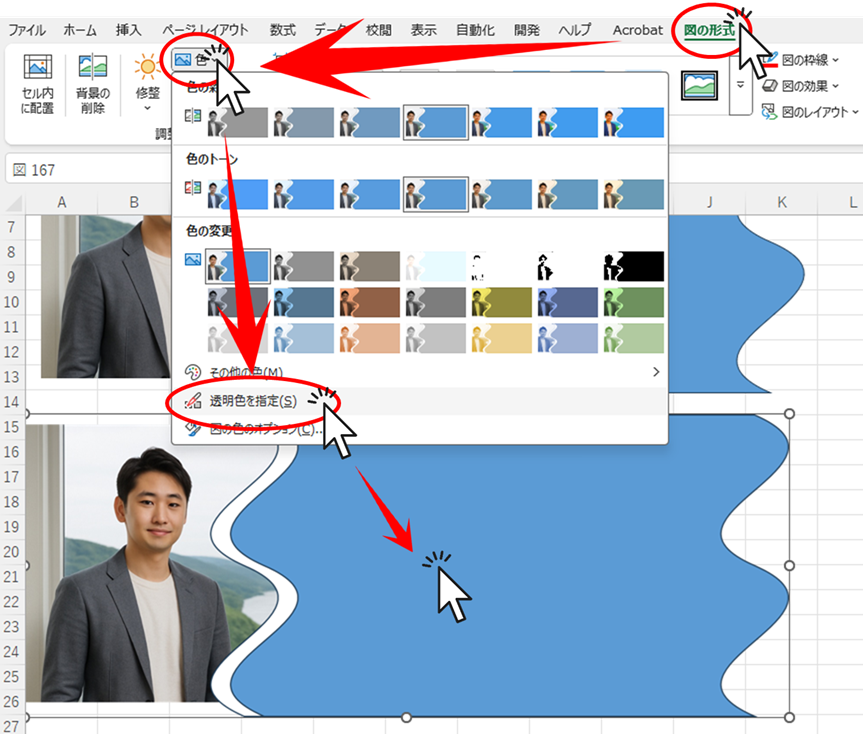
Then click on the part you want to make transparent.
Then, everything to the right of the wavy line will become transparent.
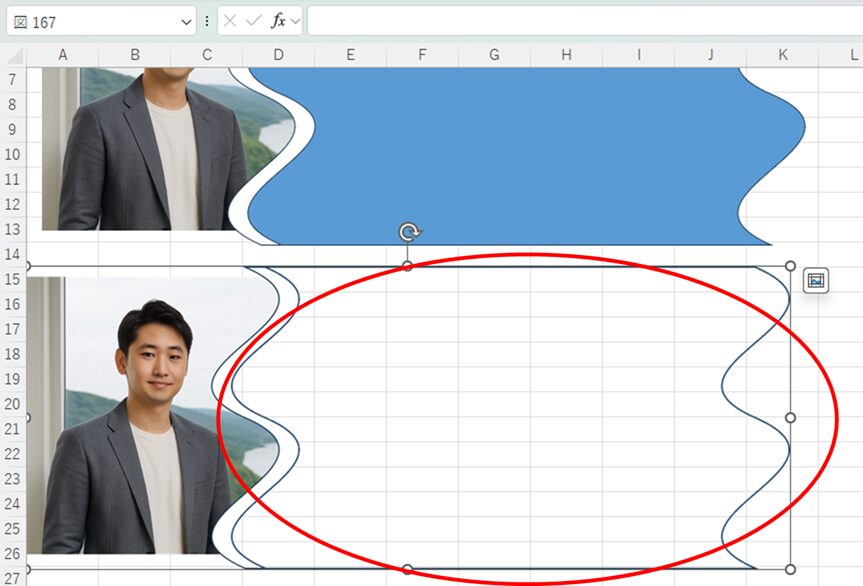
Trim excess wavy lines
With the transparent
The excess part is here
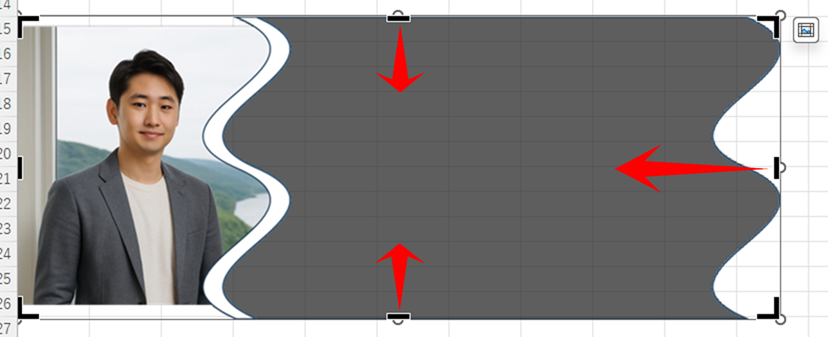
Adjust the top and bottom slightly so that the dashed transparent border is no longer visible.
If it looks like the diagram below, you've succeeded up to this point.
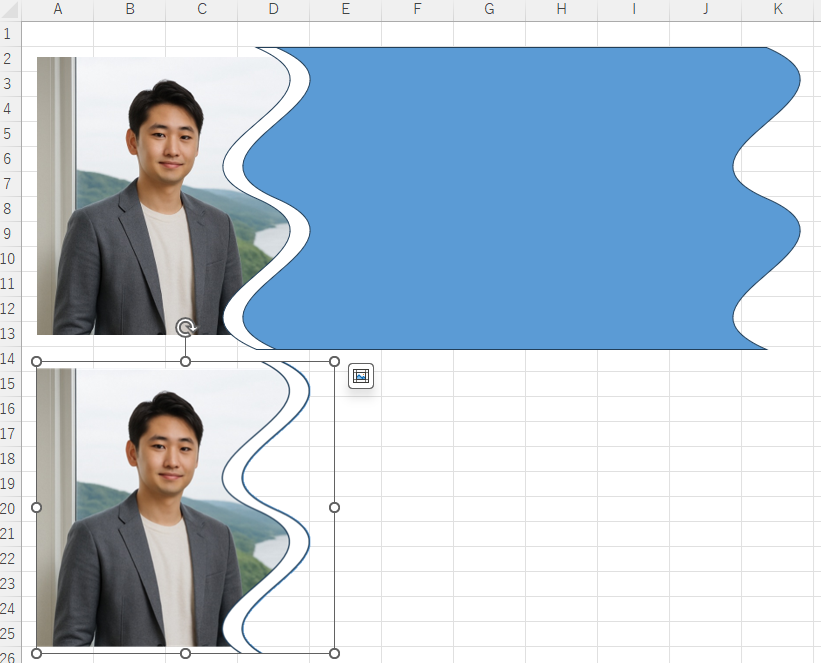
Overlay shapes
Delete the dashed line shape in the diagram above and superimpose the shape you just created.
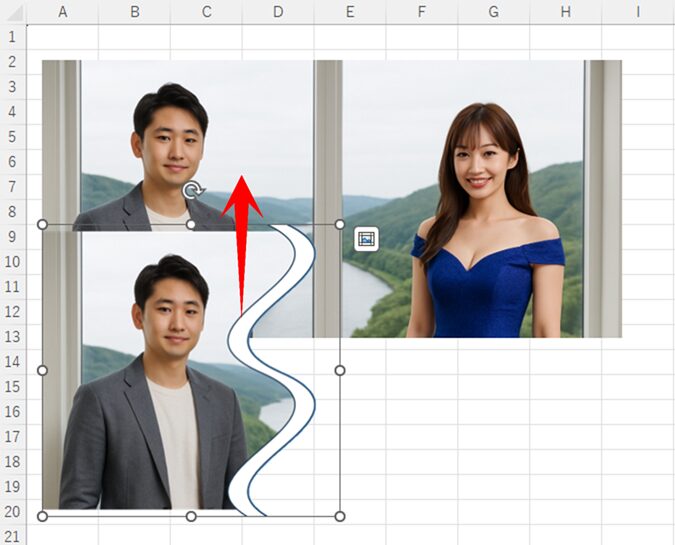
Drag the range of images you want to move. Holding down the Shift key while dragging horizontally will prevent vertical movement, which is convenient.

Trim excess images
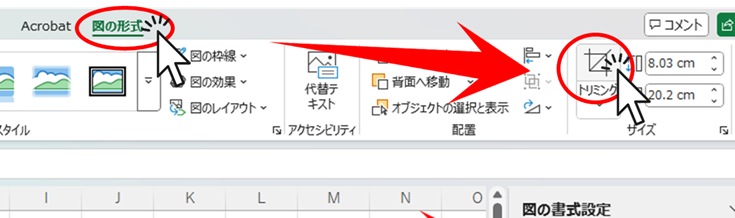
Select the image below and click crop.
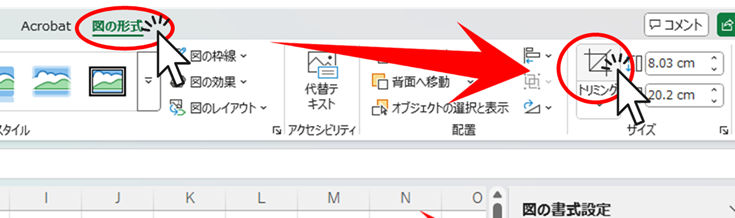
Trim the image to the area overlapping the wavy line.
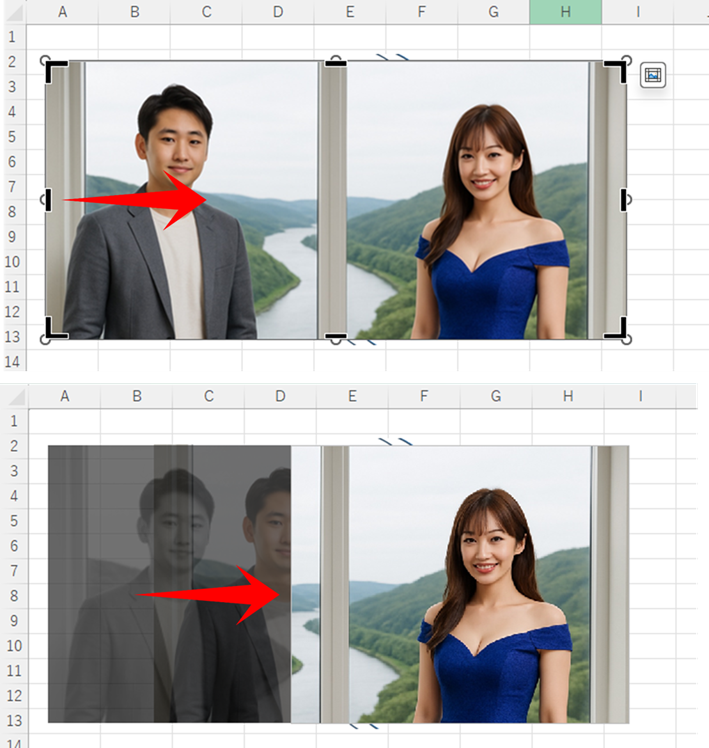
As such, we were able to omit the image with a wavy line.



 English
  日本語
日本語
Comment