
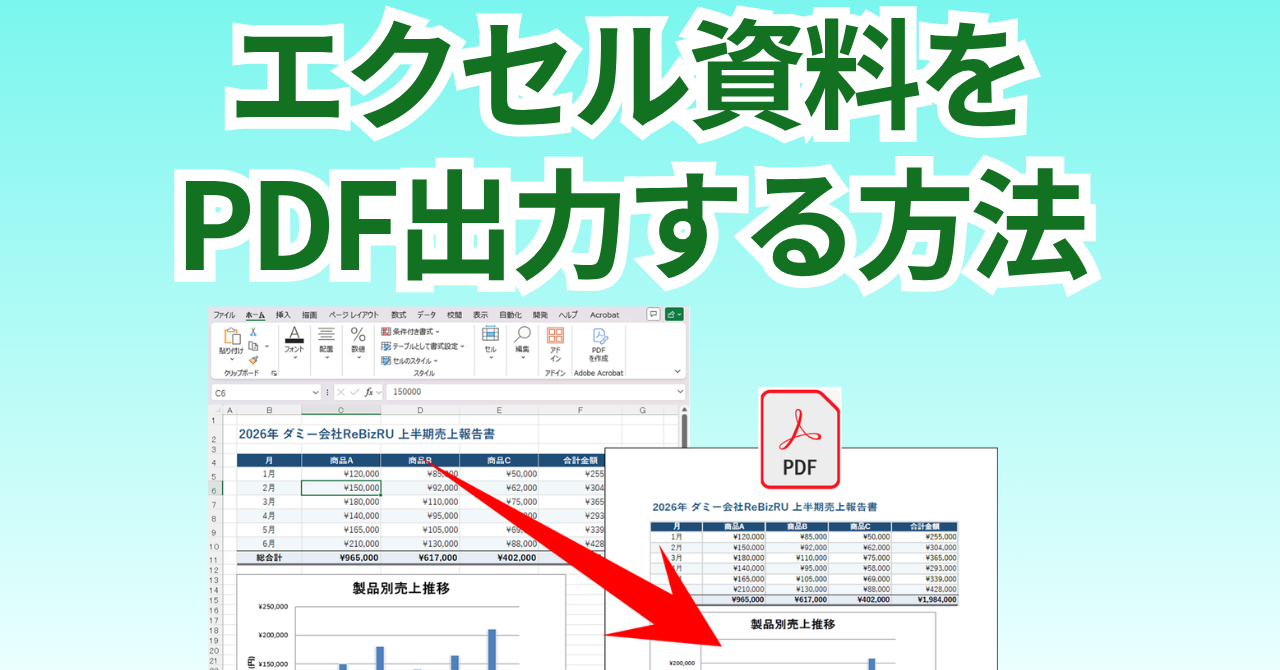
I think many people use Excel to create materials for meetings and the like.
There might be times when you don't want to share Excel data with complex formulas when sending it via email for presentations or reports, or when saving it to a shared folder.
In such cases, there are many times when instead of handing over the Excel data as is, you want to convert only the pages you want to display as materials into PDF and hand them over, right?
In such cases, there are also software options for PDF conversion, but they may be paid or require launching another program.
This time, we will introduce how to convert to PDF using Excel's built-in functions as they are.
Check print preview
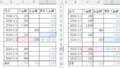
Let's check how it will be output when printed using the print preview function.
It will be output as confirmed here, so be sure to check the page numbers, margins, and other settings here.
Click the File tab.
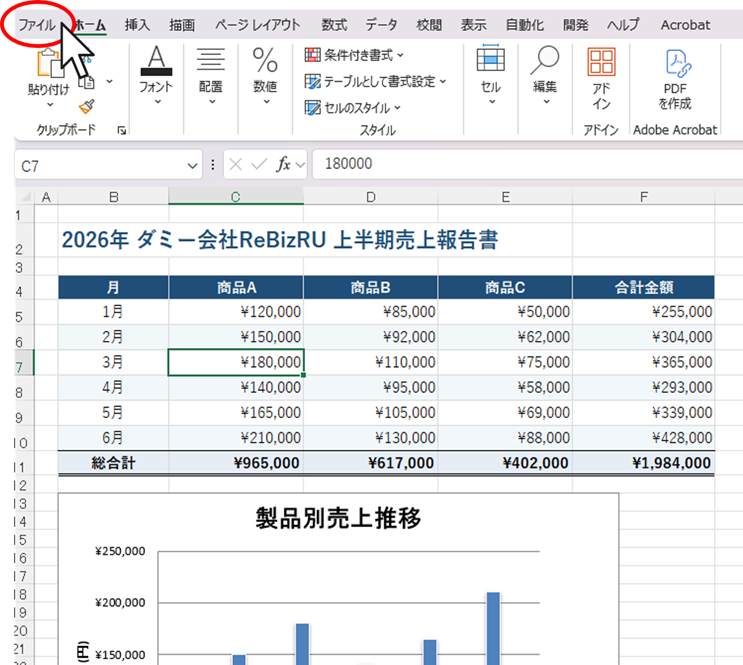
2. Press the print button
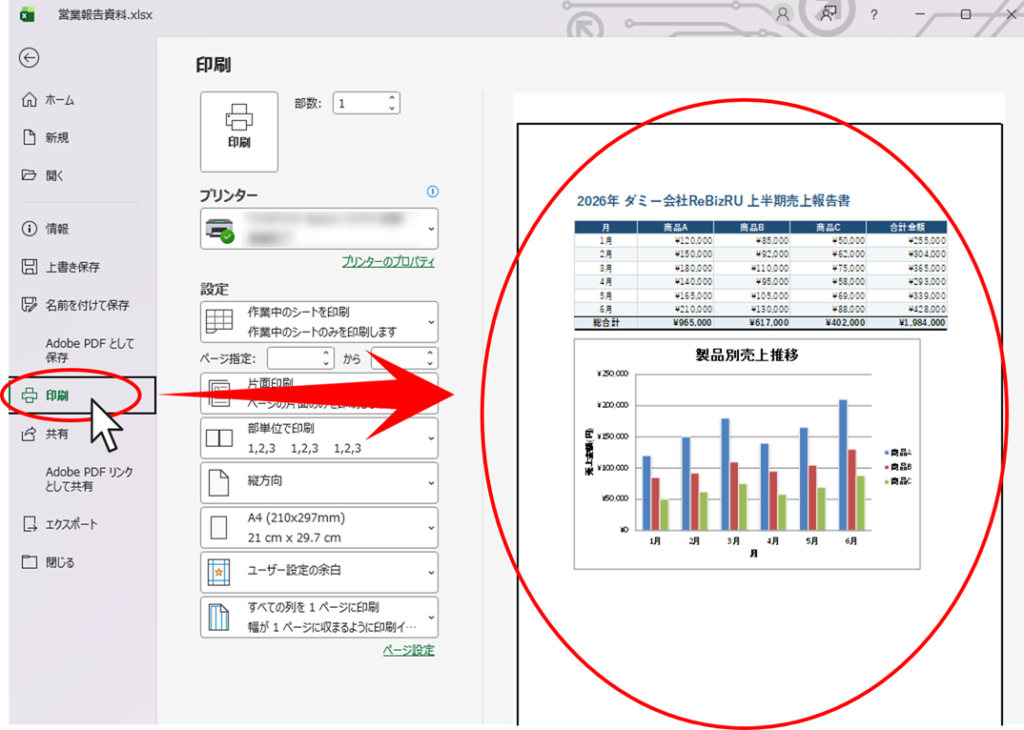
The print preview will be displayed on the right side here, so let's carefully check that there are no problems with the print range.
Export to PDF
First, click "Export" from the File tab, then "Create PDF/XPS Document," and finally click the "Create PDF/XPS" button.
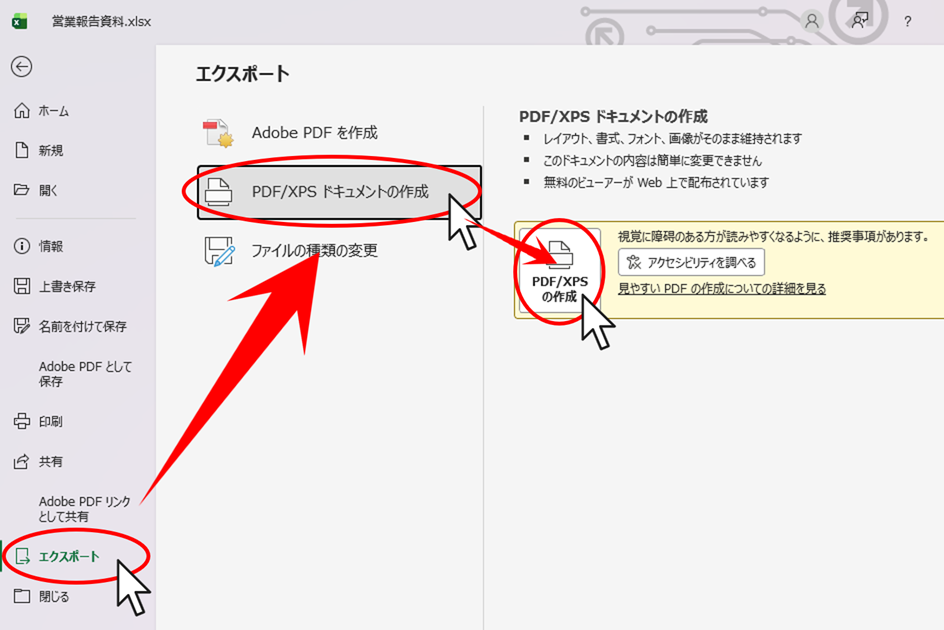
Confirm the file name and save location, and if there are no issues, click the "Issue" button.
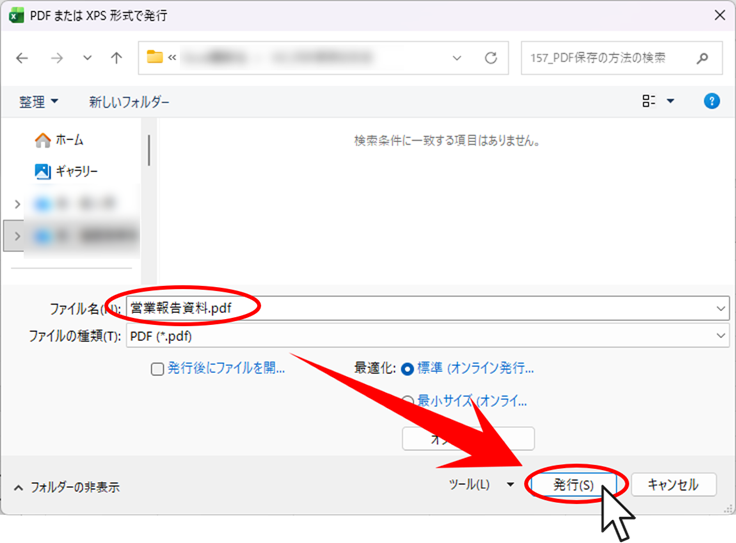
If you don't change the save location, it will be saved in the same place as the original Excel data.
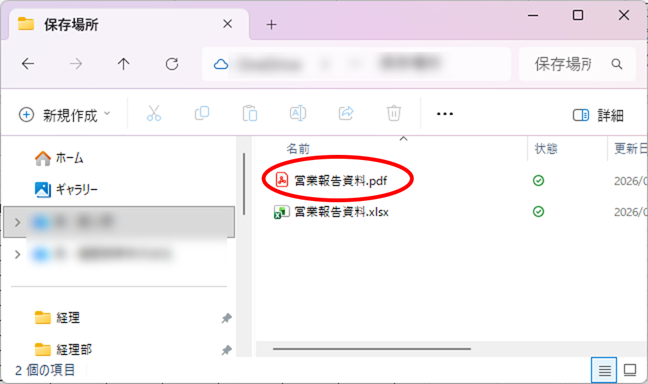
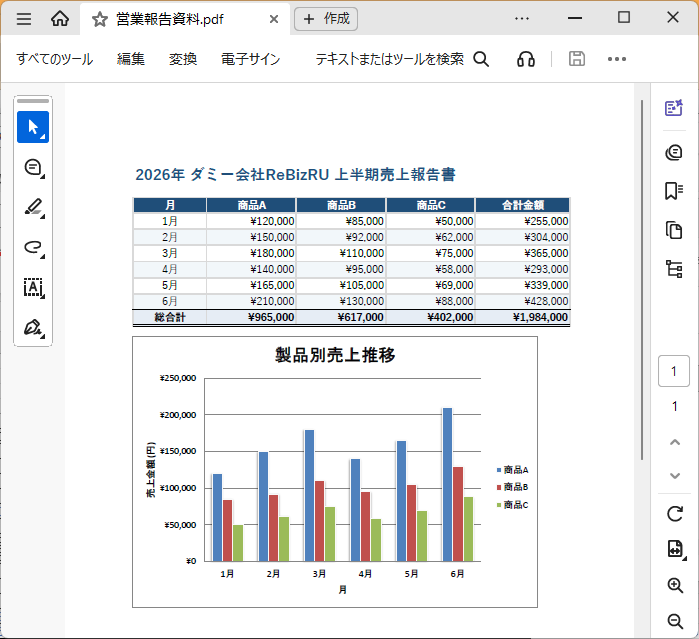
This completes saving the same data as the print preview to PDF.



 English
  日本語
日本語
Comment